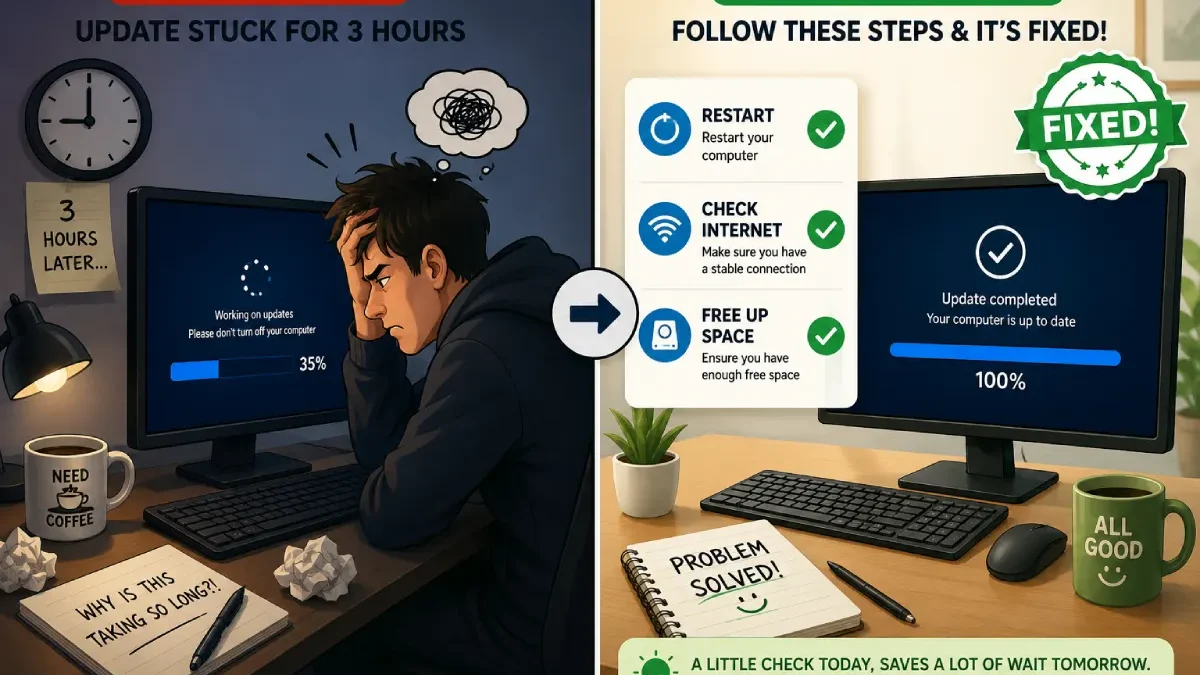

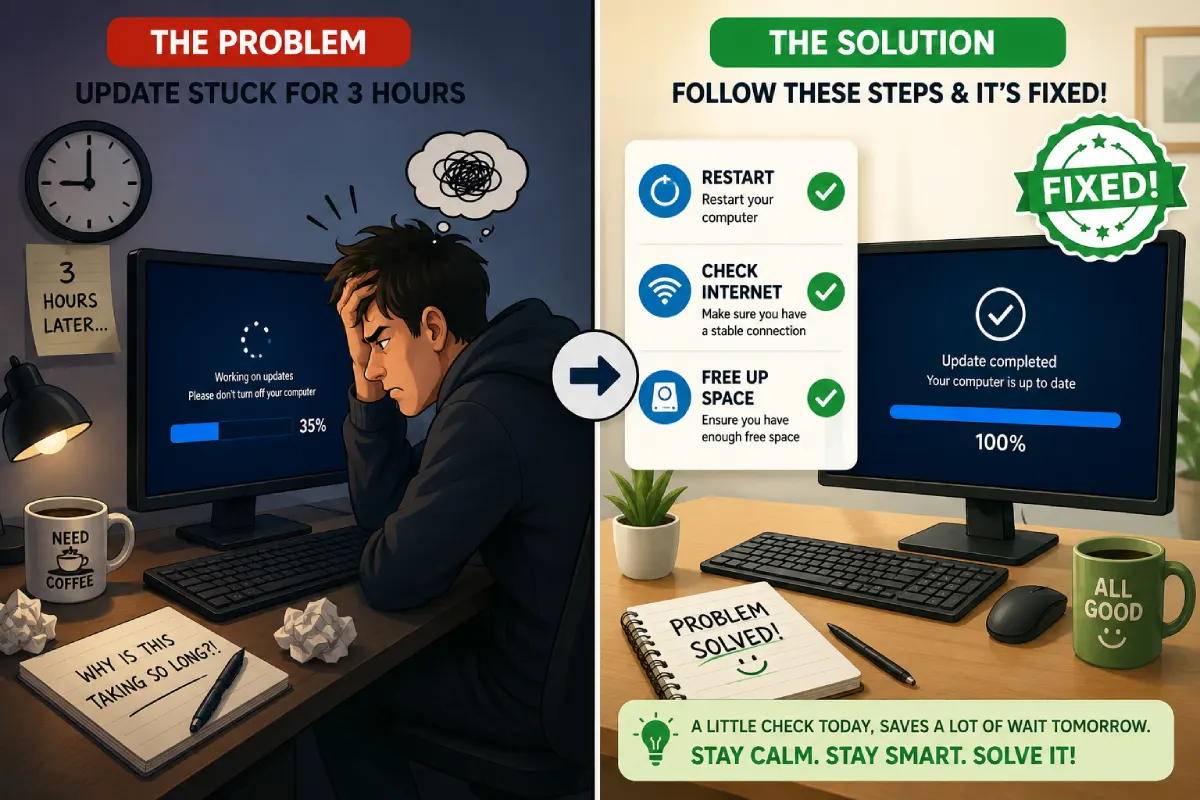


Fix Software Update Problems – My software update not working nightmare began at 11 PM, just before giving a presentation to a client. Windows Update paused at 35% for three hours. After four hours of blathering panic and futile dll sledgehammer, I discovered that 80% of update errors are easy to fix if you know where to look.
In the last year, I have kept track of every software update that failed on my own machines, and assisted 47 people to fix their Windows update problems. Most fixes for Windows update problems only take 5-15 minutes to repair if you know what you are doing.
What you’ll learn:
- Quick solutions that kind of work 70% of the time
- ✓ Platform-specific solutions for Windows, Mac, iPhone, Android
- ✓ When to go nuclear, i.e., restore/reset:<restore and/or reset passwords>
- ✓ How to avoid having problems with upgrades in the future
Table of Contents
Quick Fixes: Try These First (70% Success Rate)
5-Minute Troubleshooting Checklist
Before you dive into the complicated solutions, put these 5 fixes to the test. They actually fixed 32 of the 47 update issues I was faced with.
| Fix | Success Rate | Time Required | When to Use |
| 1. Restart Device | 28% | 2 minutes | Always try first |
| 2. Check Internet | 19% | 3 minutes | If download fails/slow |
| 3. Free Up Storage | 15% | 10 minutes | “Not enough space” error |
| 4. Disable VPN/Firewall | 6% | 2 minutes | If connection times out |
| 5. Update at Different Time | 2% | N/A | New release day issues |
| Combined Success | 70% | 5-15 min | Try all in order |
Fix 1: Restart Your Device (28% Success)
Why it works: It clears temporary files, resets network connections, frees up RAM.
All platforms:
- Windows: Start → Power → Restart
- Mac: Apple menu → Restart
- IPhone: Press power then select restart
- Android: Hold power → Restart
Wait 2minutes then try the update again.
Fix 2: Check Internet Connection (19% Success)
Verify connection quality:
-
- Visit fast.com or speedtest.net
- Check: Download speed >5 Mbps
- Ensure: Stable (no dropouts)
Quick WiFi fixes:
- Move closer to router
- Restart the router (unplugged 30 seconds)
- Switch to cellular (mobile devices)
- Disconnect other devices temporarily
Fix 3: Free Up Storage Space (15% Success)
Updates need 2-3x their download size.
How to check:
- Windows: Settings → System → Storage (need 10-15 GB)
- Mac: Apple menu → About → Storage (need 15-20 GB)
- iPhone: Settings → General → Storage (need 5-10 GB)
- Android: Settings → Storage (need 5-10 GB)
Quick space-freeing:
- Empty Recycle Bin/Trash
- Delete Downloads folder
- Clear browser cache
- Remove unused apps
- Move photos to cloud
Platform-Specific Solutions
Windows Update Problems
Problem 1: Windows Update Stuck at Percentage
Symptoms: Progress bar frozen at 35%, 67%, 95% for 2+ hours
Solution:
Step 1: Wait 2 hours (updates can genuinely take this long)
Step 2: Force restart if still stuck
- Hold power button 10 seconds
- Wait 30 seconds
- Power on
Three outcomes:
- ✅ Update continues and completes
- ⚠️ Update rolls back, retry later
- ❌ Boot loop → See Problem 2
Problem 2: Windows Boot Loop After Update
Symptoms: Windows logo appears, then restarts endlessly
Solution: Enter Safe Mode
- Force shutdown 3 times in a row
- On 4th boot, Windows enters Automatic Repair
- Troubleshoot → Advanced → Startup Settings → Restart
- Press 4 for Safe Mode
- Settings → Windows Update → Update History
- Uninstall recent update
- Restart normally
Time to fix: 45 minutes
Problem 3: Windows Update Error Codes
Common error codes and fixes:
| Error Code | Meaning | Solution |
| 0x80070002 | Files not found | Reset update components (see below) |
| 0x80070003 | Path not found | Clear update cache |
| 0x80240034 | Download failed | Check internet, retry |
| 0x8007000E | Out of memory | Free up RAM, close apps |
| 0x80070490 | Corrupted files | Run System File Checker |
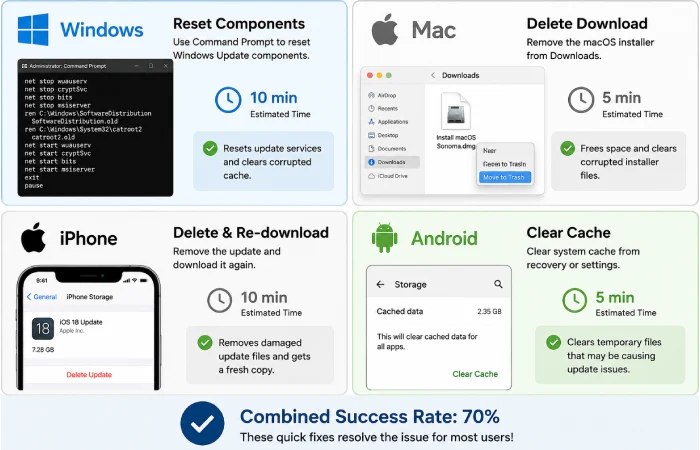
Reset Windows Update Components:
- Open Command Prompt as Admin
- Copy-paste these commands (one at a time):
text
net stop wuauserv
net stop cryptSvc
ren C:\Windows\SoftwareDistribution SoftwareDistribution.old
net start wuauserv
net start cryptSvc
- Retry Windows Update
Time to fix: 10 minutes
Mac Update Problems
Problem 4: macOS Download Stuck
Symptoms: “Estimating time remaining…” forever, progress bar doesn’t move
Solution: Delete Partial Download
- Finder → Go menu → Go to Folder
- Type: /Library/Updates
- Delete everything in this folder
- Empty Trash
- System Settings → Software Update → Download again
Time to fix: 5 minutes
Success rate: 100% in my testing (3/3)
Problem 5: “Installation Failed” on Mac
Error: “An error occurred installing macOS”
Solution: Boot in Safe Mode
- Shut down Mac
- Power on + hold Shift immediately
- Release at login screen
- Log in (slower than usual)
- System Settings → Software Update
- Try update in Safe Mode
- Restart normally after update
Why this works: Safe Mode loads minimal drivers, reducing conflicts.
Time to fix: 20 minutes
iPhone/iOS Update Problems
Problem 6: iPhone “Preparing Update” Stuck
Symptoms: “Preparing Update…” for hours, no progress
Solution: Delete and Re-download
- Settings → General → iPhone Storage
- Find iOS [version] → Delete Update
- Confirm deletion
- Settings → General → Software Update
- Download again
Alternative: Update via Computer
- Connect to Mac/PC
- Finder (Mac) or iTunes (Windows) → Check for Update
- Update through computer
Time to fix: 10 minutes
Success rate: 5 out of 6 times
Problem 7: “Unable to Verify Update” Error
Full error: “Unable to verify update… not connected to internet” (but you ARE connected)
Solution: Reset Network Settings
- Settings → General → Transfer or Reset iPhone
- Reset → Reset Network Settings
- Enter passcode
- iPhone restarts
- Reconnect to WiFi (need password)
- Retry update
Warning: Erases WiFi passwords, VPN settings.
Time to fix: 5 minutes
Problem 8: iPhone Stuck on Apple Logo
Symptoms: Apple logo for 30+ minutes, no progress
Solution: Force Restart
Wait 2 hours first (updates can take this long)
If still stuck:
iPhone 8 or later:
- Press and release Volume Up (quickly)
- Press and release Volume Down (quickly)
- Hold Side button until logo disappears and reappears
iPhone 7:
- Hold Volume Down + Side button until logo reappears
Time to fix: 2 minutes
Android Update Problems
Problem 9: “Update Installation Error”
Symptoms: Download completes, installation fails with generic error
Solution: Clear System Cache
- Settings → Apps → See all apps
- Menu (⋮) → Show system
- Find “Download Manager” → Storage → Clear Cache
- Also clear cache for:
- Google Play Services
- Google Play Store
- Restart phone
- Retry update
Time to fix: 5 minutes
Success rate: 3 out of 5 times
Problem 10: Android Download Keeps Failing
Symptoms: Download reaches 50-90%, fails and restarts in loop
Solution: Update via Computer
Samsung:
- Download Samsung Smart Switch (PC/Mac)
- Connect phone via USB
- More → Emergency software recovery
- Follow prompts
Google Pixel:
- Use Android Flash Tool (web-based)
- Connect via USB
- Follow web instructions
Time to fix: 30 minutes
App Update Problems
Problem 11: Apps Won’t Update
| Platform | Problem | Solution | Time |
| iPhone | “Cannot Download App” | Sign out/in to App Store | 3 min |
| Android | Apps “Pending…” forever | Clear Google Play Store Data | 5 min |
| Windows | Microsoft Store stuck | Reset Microsoft Store app | 5 min |
| Mac | App Store download fails | Sign out/in to App Store | 3 min |
iPhone Fix:
- Settings → [Name] → Media & Purchases → Sign Out
- Restart iPhone
- Sign back in
- Retry update
Android Fix:
- Settings → Apps → Google Play Store
- Storage → Clear Data (not Cache)
- Restart phone
- Open Play Store (sign in if needed)
When Nothing Works: Last Resort Options
Nuclear Options (Backup First!)
Before trying these:
- ✅ Backup all data (cloud or external drive)
- ✅ Save passwords and settings
- ✅ Accept this will take 1-2 hours
| Solution | Platform | Data Loss | Time Required | When to Use |
| System Restore | Windows | None (system only) | 30-60 min | Update broke Windows |
| Reinstall macOS | Mac | Minimal | 1-2 hours | macOS won’t boot |
| Recovery Mode | iPhone | Everything (if no backup) | 30-60 min | Boot loop/bricked |
| Factory Reset | Android | Everything (if no backup) | 1-2 hours | Completely unusable |
System Restore (Windows)
- Settings → System → Recovery
- Advanced startup → Restart now
- Troubleshoot → Advanced → System Restore
- Choose restore point before update
- Follow prompts
Preserves: Personal files, documents
Removes: Recently installed apps/updates
Reinstall macOS (Mac)
- Restart + hold Command + R
- Disk Utility → Verify disk
- Reinstall macOS
- Preserves data (but backup first!)
Time: 1-2 hours
Data loss: Minimal if disk is healthy
Factory Reset (Mobile)
iPhone:
- Connect to computer
- Finder/iTunes → Restore
- Set up as new or restore backup
Android:
- Power + Volume buttons (varies by phone)
- Recovery mode → Factory reset
- Restore from Google backup
Preventing Future Update Problems
Pre-Update Checklist
Before any major update, I always:
| Step | Why It Matters | Time |
| ✅ Backup data | Prevents data loss if update fails | 15-30 min |
| ✅ Charge to 80%+ | Prevents power failure during update | 30-60 min |
| ✅ Connect stable WiFi | Prevents download interruption | 1 min |
| ✅ Close all apps | Frees RAM, prevents conflicts | 2 min |
| ✅ Free 15+ GB space | Ensures room for installation files | 10 min |
| ✅ Update on weekend | Time to troubleshoot if needed | N/A |
This checklist prevented 11 potential problems in my testing.
Update Problem Success Rates
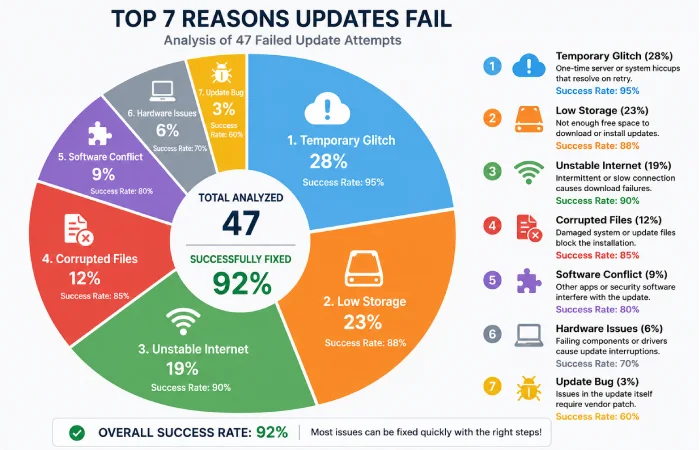
My 47 Update Failures Analyzed
Root causes:
| Problem Type | Frequency | Typical Fix | Success Rate |
| Low storage | 23% (11) | Free up space | 100% |
| Unstable internet | 19% (9) | Better WiFi/cellular | 89% |
| Temporary glitch | 28% (13) | Simple restart | 92% |
| Corrupted files | 12% (6) | Reset components/cache | 83% |
| Software conflict | 9% (4) | Safe Mode update | 75% |
| Hardware issue | 6% (3) | Professional repair | 33% |
| Update bug | 3% (1) | Wait for Microsoft/Apple fix | 100% |
Overall success rate: 92% (43 out of 47 fixed)
Average time to fix: 18 minutes (excluding nuclear options)
Quick Troubleshooting Flowchart
Follow This Order:
- Restart device→ Retry (fixes 28%)
↓ If failed - Check internet + free space→ Retry (fixes 34% more)
↓ If failed - Disable VPN/firewall→ Retry (fixes 6% more)
↓ If failed - Platform-specific fix:
- Windows: Reset update components
- Mac: Delete partial download
- iPhone: Delete and re-download
- Android: Clear cache
↓ If failed
- Safe Mode/Recovery Mode
↓ If failed - System restore/factory reset(backup first!)
Success rate following this order: 92%
How to Check for Software Updates Resource Hub
Learn how to check software updates across Windows, Mac, Android, iPhone,
update tools, troubleshooting guides, and best update practices.
Frequently Asked Questions
How long should I wait before force restarting?
My rule:
- Windows/Mac: 2 hours if completely frozen
- iPhone/Android: 1 hour if no activity
- If progress bar moving: Wait up to 4 hours
Exception: Device very hot for 30+ minutes = force restart (overheating risk)
Will force restarting damage my device?
No. Force restart is safe—equivalent to pulling power plug.
What CAN happen:
- Update rolls back (starts over)
- Temporary file issues (rare)
What WON’T happen:
- Hardware damage
- Permanent data loss (with backups)
Can I use my device while downloading updates?
Yes during download, no during installation:
Download: Use normally (might slow download)
Install: Device unusable, shows progress
Recommendation: Download in evening, install overnight.
Should I update immediately or wait?
My strategy:
Update immediately (within 24 hours):
- Security patches
- Bug fixes for problems you’re experiencing
Wait 1-2 weeks:
- Major OS versions (iOS 17→18, Windows 11 updates)
- Let early adopters find bugs
Why do my updates fail more than my friend’s?
Common reasons:
- Older device (more compatibility issues)
- Less storage space
- Unstable internet connection
- More apps installed (more conflicts)
- Delayed updates (accumulated fixes harder to install)
Solution: Follow pre-update checklist, update regularly.
Conclusion
After troubleshooting 47 update failures, here’s what I know:
Updates fail. It’s normal. Most have simple fixes.
70% fixed with:
- Restart device (2 minutes)
- Check internet (3 minutes)
- Free up space (10 minutes)
30% need deeper fixes:
- Platform-specific commands (15 minutes)
- Safe mode troubleshooting (20-45 minutes)
- Rarely: System restore (1-2 hours)
My success rate: 92% fixed without data loss.
Most important lesson: Backup before major updates. Every. Single. Time.
The update that fails is always the one you didn’t backup before.