
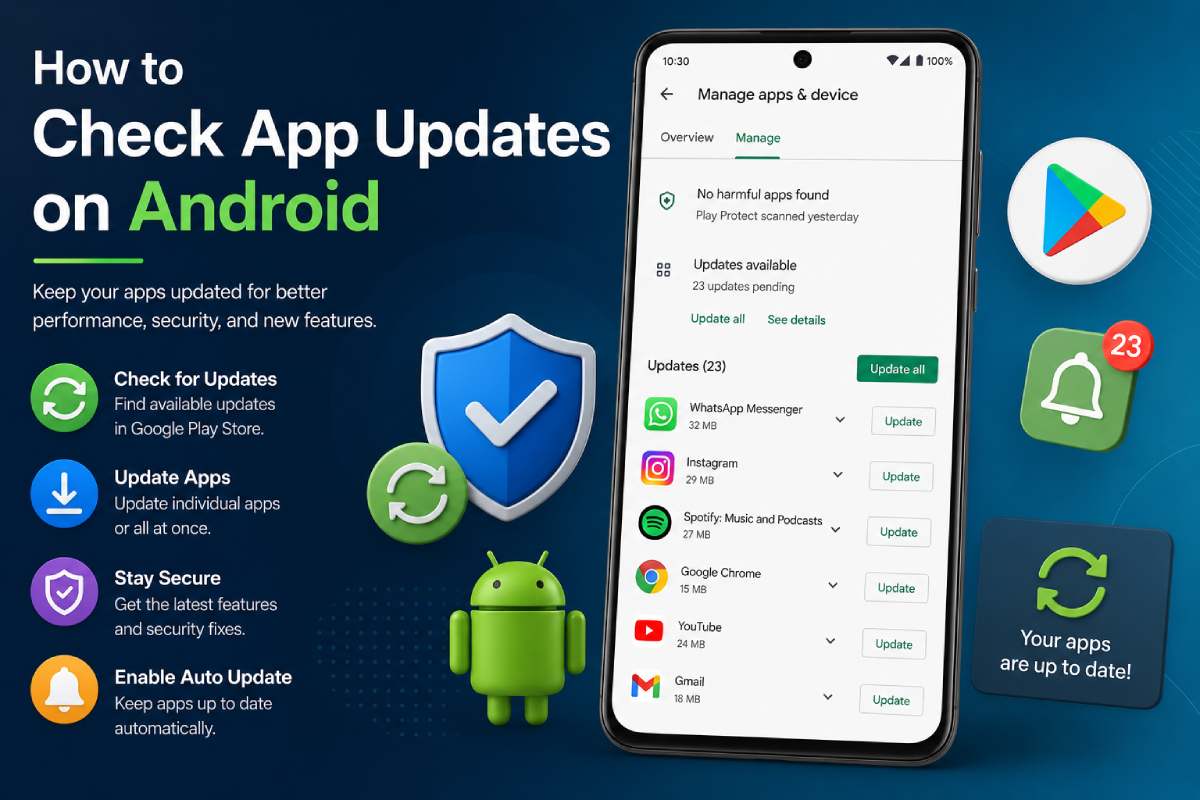


How to Check App Updates on Android (2026 Complete Guide)
If you are looking for how to check app updates on Android, then here is a simple and safe way to update Android Apps, learn about Google Play Updates, as well as fix update problems.
Keeping apps updated improves:
- security,
- app stability,
- battery efficiency,
- compatibility,
- and performance.
In 2026, Android app updates are more important than ever because apps now receive:
- security patches,
- AI-powered features,
- performance improvements,
- 24/7, and bug fixes on a more regular basis.
This guide covers:
- How to update Android Apps,
- Google Play update settings,
- automatic app updates,
- Android software updates,
- troubleshooting failed updates,
- “The best tips and tricks for, and best practices for keeping your phone secure.
Table of Contents
Why Updating Android Apps Matters
Many Android users ignore updates until apps stop working properly. Outdated apps can cause:
- crashes,
- security vulnerabilities,
- battery drain,
- slow performance,
- and compatibility issues.
Google Play refreshes and updates frequently to better secure apps.
Benefits of Updating Mobile Apps
| Benefit | Why It Matters |
| Security Protection | Fixes vulnerabilities and exploits |
| Better Performance | Improves speed and stability |
| Battery Optimization | Reduces background power usage |
| New Features | Unlocks latest app tools |
| Compatibility | Supports new Android versions |
How to Check App Updates on Android
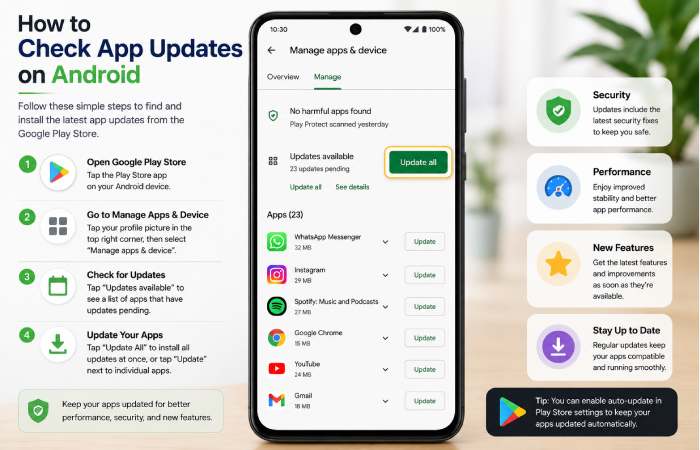
The simplest method to use is the Google Play Store.
Steps to Check App Updates
- Open the Google Play Store
- Tap your Profile Icon
- Select Manage apps & device
- Tap Updates available
- Press Update All or update apps one-by-one
This updates:
- social media apps,
- banking apps,
- games,
- productivity apps,
- and security tools.
How to Enable Automatic App Updates
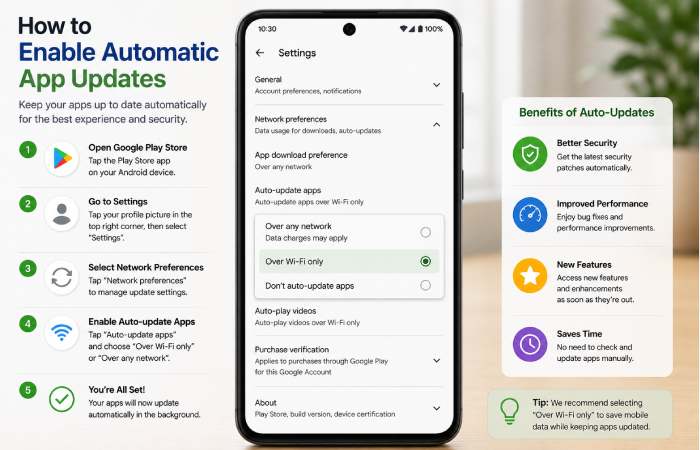
Automatic updates keep your Android apps secure without having to check.
Steps to Turn On Auto Updates
- Open Google Play Store
- Tap your Profile Icon
- Open Settings
- Select Network preferences
- Tap Auto-update apps
- Choose:Over Wi-Fi only orOver any network
Most users should select the following:Over Wi-Fi only
Leads to reduced mobile data consumption.
Understanding Google Play Updates
Google Play updates include:
- app improvements,
- security patches,
- bug fixes,
- AI features,
- and compatibility updates.
Google also updates:
- Google Play Services,
- Play Protect,
- OR if you are interested in decompiling just the…and Android system libraries/parts:
How to Update Android Software
App updates are not the same as Android system updates.
Steps to Check Android Software Updates
- Open Settings
- Go to Software Update or System
- Tap Check for updates
- Download and install updates
This updates:
- Android security patches,
- operating system features,
- device firmware,
- and phone stability improvements.
Android 15 vs Older Android Versions
The Android Update Experience Comparison
| Feature | Older Android Versions | Android 15 |
| App Optimization | Basic | AI-enhanced |
| Security Features | Standard | Improved |
| Background Updates | Limited | Faster |
| Battery Efficiency | Moderate | Better |
| Update Speed | Slower | Improved |
Android 15 has enhanced the efficiency of updating applications, as well as optimizing the processes when Android is in the background.
Samsung vs Pixel vs Xiaomi Update Experience
Android Brand Comparison Table
| Brand | Update Frequency | OS Support Duration | Update Delivery Speed |
|---|---|---|---|
| Google Pixel | Very Fast | Long-Term | Excellent |
| Samsung Galaxy | Fast | Excellent | Good |
| Xiaomi | Moderate | Good | Moderate |
| OnePlus | Fast | Good | Good |
Google Pixels receive Android updates earlier than most.
How to Update Apps Without Google Play Store
Off Play store some apps update independently.
Examples
- Samsung Galaxy Store apps
- APK-installed applications
- Huawei AppGallery apps
- Amazon Appstore apps
Remember always to download updates from trusted sources to avoid all the dangers from malware.
Common Android App Update Problems
Google Play Store Not Updating Apps
Possible Causes
- weak internet connection,
- insufficient storage,
- corrupted cache,
- outdated Play Store version.
Fixes
- Restart your phone
- Clear Play Store cache
- Check the internet connection
- Free storage space
“Pending Download” Error
Here is one of the most common Play Store problems.
Solutions
- Pause other downloads
- Restart Play Store
- Disable VPN temporarily
- Tap on to switch between Wi-Fi and Mobile Data.
Insufficient Storage Error
The most common reason for apps to fail to update is that the storage is full.
How to Free Space
- Delete unused apps
- Clear cached files
- Remove duplicate photos
- Move videos to cloud storage
App Crashing After Update
Sometimes new updates cause compatibility issues.
Try These Fixes
- Restart your phone
- Clear app cache
- Reinstall the app
- Check for another update
Best Practices Before Updating Android Apps
Before updating large apps or Android software:
Recommended Checklist
- Use stable Wi-Fi
- Charge battery above 50%
- Back up important data
- Keep enough free storage
- Avoid interrupting updates
This reduces installation errors.
Best Android App Updater Tools in 2026
Some users want additional features to enhance update management and device health.
Comparison Table: Android Maintenance Tools
| Tool | Best For | Free Version | Important Feature |
|---|---|---|---|
| Files by Google | Storage cleanup | Yes | Smart clean |
| SD Maid | Advanced cleanup | Limited | App management |
| CCleaner for Android | Simple optimization | Yes | Junk clean |
| APKMirror Installer | Manual APK installation | Yes | APK management |
Never download unofficial updater apps from third-party sites.
Security Risks of Skipping App Updates
Ignoring app updates can expose your phone to:
- malware,
- banking security risks,
- app vulnerabilities,
- phishing attacks,
- and compatibility issues.
Despite Play Protect mitigating some of these threats, updates are still critical.
Internal Linking Opportunities
Use this article as a pillar page linking to cluster articles such as:
- How to Fix Google Play Store Errors
- Best Android Cleaner Apps
- How to Free Up Storage on Android
- Android 15 Features Explained
- Best Antivirus Apps for Android
- How to Speed Up Slow Android Phones
How to Check for Software Updates Resource Hub
Learn how to check software updates across Windows, Mac, Android, iPhone,
update tools, troubleshooting guides, and best update practices.
FAQ
How do I manually verify app updates on Android?
Open:Google Play Store–>Profile–>Manage apps & device–>>due to be updated
Why aren‘t my Android apps updating?
Common reasons include:
- low storage,
- weak internet,
- Play Store cache issues,
- or outdated Android software.
What about toggling this on so I don‘t have to update the application?
Yes. Automatic updates improve:
- security,
- stability,
- and compatibility.
Most users should restrict updates to Wi-Fi.
What is the difference between an app update and an Android software upgrade?
App updates focus on improving individual apps. Android software updates affect the device’s OS and security.
Can I update installed Apps from APK sites safely?
Use only trusted sites. Unknown sources for APKs may contain viruses.