


How to Design Mobile Apps: A Complete Guide to UI, UX, Wireframes and Prototyping
A mobile app design is not just attractive screens. In order to have the app work for your users, it has to consist of user research, information architecture, UX design, UI design, wireframing,prototyping and testing.
No matter if you are building a shopping application, banking application, social application, productivity application or business application, the process is generally the same. First you understand the problem, then you scope out the user journey, organize information, build wireframes, design your application, build an interactive prototype and test out your experience before you build.
This guide describes how to build mobile applications from scratch until handing off to developers, with practical suggestions for beginners.
Table of Contents
What Is Mobile App Design?
Mobile app design is all about creating the look, feel and function of the app when it is being used. The design of a mobile app encompasses two key aspects:
UX design
UX, or user experience, focuses on how the app works. It covers:
- User goals
- Navigation and user flow. Once the basic wireframe of the prototype is established, I will work to construct the overall concept by examining navigation through content and features and designing the user flow accordingly.
- Information structure
- Interaction and error handling
- How achievable it feels for users to accomplish tasks.
UI design
UI, or user interface, focuses on how the app looks. It covers:
- Colors and typography. The choice of colors to be used when designing the site and the type of lettering to do on it. For example, one topic listing is marked by a yellow background and the header is written in an inclusive font and the webmaster‘s Email address is nicely underscored.
- Buttons,Icons,cards and forms
- Spacing, images and overall visual hierarchy
Great mobile apps mix both. Beautiful is frustrating to use if: navigation is confusing. An efficient experience can feel unfinished when the visual design is weak.
Start With the Problem, Not the Screens
While starting out it‘s easy to make the mistake of opening a design tool and working on screens. Begin with the problem. Ask:
- Whom is the application for?
- What is the purpose of it?
- What exactly is the problem they are currently having?
- Are they interested in what the application has to offer?
- What is the only thing they need to do?
For example, if you are designing a food-delivery app, the main user journey might be:
Find good food→ decide on a restaurant→ order food→ payment→ monitor delivery
That flow must be the starting point for your design. In this simple journey, there‘s no need to go through dozens of screens before you know what it is. The first step is to determine what the user need is, then figure out which aspects of the experience the app must assist with.
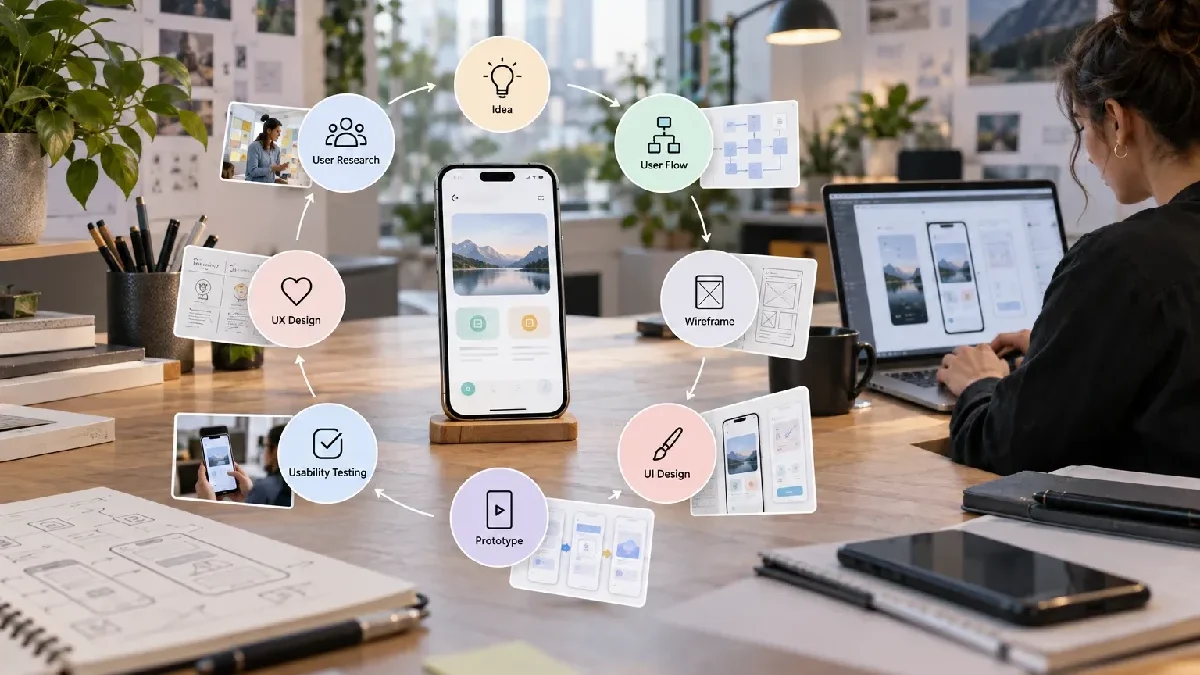
The Mobile App Design Process
A practical mobile app design process has seven stages:
- Come up with a topic that you want to investigate in depth..
- Gain insight in the users.
- Design user flows.
- Build wireframes.
- Create the user interface.
- Develop and experiment with a prototype.
- Prepare design for development.
It‘s not always straightforward. Your tests could lead you to discover that the user flow needs to be altered, in which case you will be back at wireframes or start over completely. Nothing wrong with that.
Understand Your Users
Designing a mobile app that is driven by genuine user needs – not hunches.
Identify the target user
Define the main user group. For example:
- Users might want immediate access to classes, coursework and working schedules.
- One might argue that shoppers may mainly care about availability, comparison, and checkout.
- Business users may require dashboards, approvals and reports.
- Travelers: search; maps, bookings & offline information.
Identify user goals
Write down what you want users to do. A good goal states an outcome. Rather than saying use the app, try booking a hotel room for the upcoming weekend. The 2 nd statement at least gives you a fixed point to work from.
Identify pain points
Look for places where users may struggle, such as:
- The number of steps.
- Confusing navigation
- Unclear buttons
- Difficult forms
- Slow feedback
- Missing information
- Unexpected errors
These issues should effect the UX even before I begin visual styling.
Create the User Flow
A user flow shows how someone moves through the app to complete a task. For example:
Open app→Search→Click into result→Read details→Add item to basket→Checkout→Confirmation
Without that flow, designers can design the screens as standalone screens which may look great but do not flow naturally. Mapping the flow reveals the missing steps early on and provides a framework for designing the screens.
Create Mobile App Wireframes
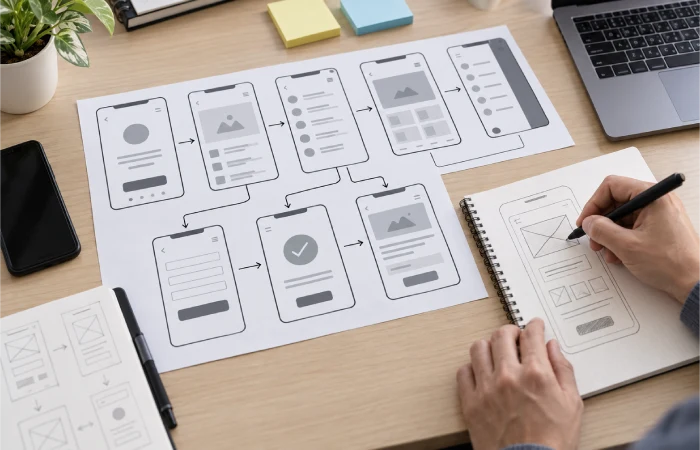
A wireframe is a very basic visual guide to an app screen. It represents the design theme but in terms of structure. A wireframe might show:
- Header and navigation
- Content blocks and lists
- Buttons, images and forms.
- Call to action.
Low-fidelity wireframes
Low-fidelity wireframes are less detailed and might be utilising some boxes and lines with bare minimum labelling. Their task is to:
- Is the configuration correct?
- Is the ordering correct?
- Is it possible for the user to do this task?
High-fidelity wireframes
The more detailed they are in appearance. For example, actual layout, colors, images, icons and controls. It is best to avoid a time-consuming effort to perfect the interface first.
Design the Mobile App UI
Once the structure is functional, proceed to visual design.
Typography
– Select type that is legible on small displays. Establish a top-to-bottom text hierarchy (title, section headings, body copy, labelling and then supporting information). Use one or two typefaces to prevent clutter.
Color
Use colors to indicate meaning and hierarchy. For example, you may use the action on of color primary to give prominence in a page. Use the warning and success colors to communicate states. Never rely on color alone to communicate meaning.
Buttons and icons
Make sure buttons feel easy to tap and easily available for the primary action. For example, a checkout screen should make “Continue to Payment” the most easy to find option as opposed to “Save for Later.”
Use common icons where possible. Please refrain from icons that look good but have an unclear representation.
Spacing and components
Predictable spacing helps make visual structure. Implement a consistent spacing system instead of selecting arbitrary distances for each single screen. Reusable components also ensure consistency: for instance, not every button should be a different visual style on different screens.
Follow Strong Mobile UX Principles
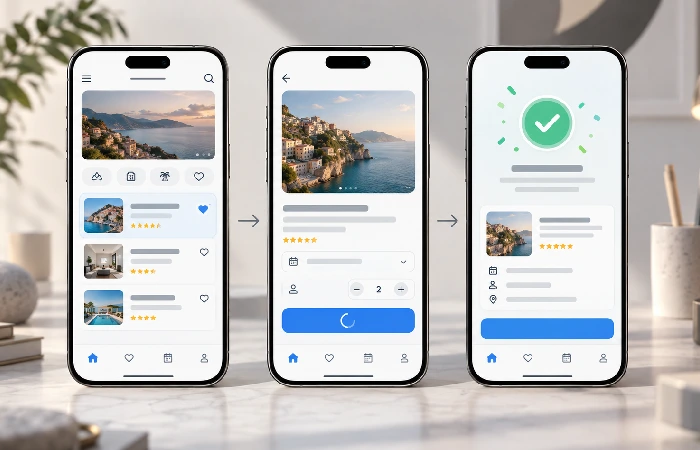
Good UX will make an application more intuitive and more efficient to use.
- Make navigation predictable. Users need to know where they are and how to reach another part of the app. In case the app has multiple primary destinations, predictable navigation can reduce learning effort.
- Cut down on the clutter. Keep it simple, so if a task would have finished in three easy steps, don‘t make it take seven screens to do so.
- Provide instant feedback. Confirm that an operation has succeeded using a loading symbol, button-state change, confirmation dialog or progress indicator.
- Help me make sense of the error. State what happened and how the user can fix it for instance: “We’re having trouble processing your card. Recheck your details and try again” is better than an error code.
- Save the user state. If the user has entered 100% of the data, do not flush away the nearly completed form due to an error.
- Make important tasks easy. Don‘t make a user look for how to proceed.
Design for Different Screen Sizes
Mobile design is not just one portrait phone size. Apps may now run on small and large phones, foldables, tablets, desktops-sized windows and split-screen.
Design responsively to allow reflow, resize, rearrange, expand and collapse content as screen real estate changes. We should not just scale a phone layout up to fill a bigger screen. For example, a small phone display might have bottom navigation, while a larger form-factor might use a navigation rail or multiple-pane screens.
Design for Accessibility
Accessibility should be integral to the design process. Not seen as an afterthought.
Make text readable
Ensure that text contrasts well against its background. The article‘s instructions refer to WCAG Level AA contrast ratios of 4.5:1 for regular text and 3:1 for large text; exceptions are given.
Make controls easy to tap
Do not use very small buttons or icons. As the paper notes, Android recommended 48 × 48 (density-independent) pixels for a finger touch target and WCAG specified a 44 × 44 CSS pixels target-size for Level AAA pointer inputs (with exceptions).
Support more than color alone
If red and green labels convey information about status, provide text, icons or patterns or offer states that are distinguishable from each other.
Think of tools like VoiceOver, Switch Control, Android accessibility services. More transparent labels and accessible controls often work better than way.
Choose the Right Mobile App Design Tools
Can you pick a tool for the work you really do? For interface design, components, collaboration and prototyping, Figma is just one candidate. Its prototyping supports connected flows, interactions, animations, overlays and device previews.
Designers may also choose to work with one of Sketch, Adobe tools, Framer or Penpot. User-testing platforms, such as FigJam, also as use a tool and a platform to develop a project. What is more important for beginners is having one single design platform to learn thoroughly instead of constantly switching from one to the next.
Build a Mobile App Prototype

A prototype links your screens together so that you can try out the whole experience of your design. A prototype should be able to show all the touches, navigation, interaction with forms, overlays, transitions, menus and scrolling, and success and failure states.
Prototyping will aid in identifying a problem before it reaches the development stage. For example, a button may be in a position that makes it hard to find or create a flow that has too many steps. ‘A screen contains too much information or users don‘t recognise what to do next’. These are generally easier to rectify in a prototype than in an application.
Test the Design With Real Users
Designers are probably too familiar with their own interface. A user who has never encountered the application will likely see this screen differently.
Set a task to the user, e.g. Find the cheapest flight to Delhi for Friday and go through to checkout. Watch discreetly without explaining immediately where they tap first, where they get stuck, where they tap back, which info they overlook.
Ask what they thought a button should do, what they found confusing, what they would change, what information was missing etc. Their feedback can signal UX problems designers weren‘t aware of.
Prepare the Design for Developers
A mobile design is not complete when the screens looks good. Developers require sufficient detail in order to implement the desired interaction. Offer:
- The final designs for the screens and the states of components.
- Spacing, typography, color and icon details.
- Assets & interaction conduct.
- Responsive behavior
- States for error, loading and empty states
Don‘t construct only the perfect one. Include important states such as loading, success, error, empty, disabled, selected, active and offline. A production app needs more than its main screen.
Common Mobile App Design Mistakes
- Beginning design work on the visuals before defining the problem: a sleek interface isn‘t going to save an ill-conceived product.
- Building screens without the benefit of user flows: individual screens can be well-designed but the overall experience is unclear.
- Adding too many features: more features added means more things to understand.
- Populate the home screen: make it easy to distinguish the most frequently used actions.
- Going with small controls or neglecting accessibility both add friction to the experience.
- Designing to one screen size, once again, mobile phones, foldables and tablets may have different layouts.
- Avoiding prototypes: either all interaction problems will be camouflaged until you will develop.
- Excluding Error and Empty States: the real app may also have no data, failed actions, or downtime.
A Simple Mobile App Design Workflow for Beginners
- State the main problem. State in one sentence what users can achieve with the app.
- Main user definition. Who will most frequently access the application?
- List core features. Keep it simple! What should be included in initial release?
- Make the main flow of the user. Draw the key task from first step to last.
- Visualize shape and forms. Simplify geometry and shape. Draw wireframes. Concentrate on structure.
- UI. Include typography, color, spaces, icons and components.
- Build a prototype. How would the screens be linked to each other?
- Prototype it: Observe actual people using the prototype.
- Improve the design You can’t fix something until you discover what’s wrong. Tackle the most serious usability problems first.
- Hand it off. Give developers the final designs, states and interaction rules.
This approach helps prevent hours of work being spent on screens that may later be removed.
Mobile App Design Checklist
| Area | Questions |
|---|---|
| User | Is the target user clear? |
| Goal | Is the main task clear? |
| Navigation | Can users move around easily? |
| UI | Is the interface consistent? |
| UX | Can tasks be completed efficiently? |
| Forms | Are inputs simple? |
| Feedback | Does every important action provide feedback? |
| Errors | Are error messages useful? |
| Accessibility | Are text, labels, contrast and controls accessible? |
| Responsive design | Does the layout adapt to different screens? |
| Prototype | Have key flows been tested? |
| Handoff | Can developers understand the intended behavior? |
Frequently Asked Questions
How do I design a mobile app?
Begin by identifying the problem and the appropriate customers. Design corresponding user flows, wireframes, UIs and an interactive prototype. Test the prototype when finished before passing the design to the developers.
What is the difference between UI and UX design?
The Role of the User Experience (UX) as opposed to the User Interface (UI). UX is concerned with how the application works, how people accomplish tasks within it. The UI is concerned with the visual interface, shapes, colors, typefaces, buttons, icons and layouts.
Should I create wireframes before UI design?
Yes. Wireframes allow you to identify layout and user-flow issues before investing time in visual design.
What is a mobile app prototype?
A prototype is an interactive trial built with screens and simulates essential interactions. This enables the user to test the experience in advance of designing.
Which tool is good for mobile app design?
One practical choice is Figma because it allows designing the interface and prototyping as well as lets you preview the prototype on a mobile device.
What makes a good mobile app UI?
A good user interface should be easy to read, consistent, well visually defined and simple to operate. Important or frequently used features should be clearly visible, the interface should not appear densely populated and controls should be easy to use the correct size.
Why is accessibility important in mobile app design?
Better accessibility; Apps should be easier to access and use for people with a broad range of disabilities. Apply platform accessibility features and guidance.
Should mobile apps support tablets and foldable devices?
In the context of apps meant to run on the modern set of Android form factors adaptive design plays a bigger part. Think of phones, foldables, tablets and bigger windows instead of constraining your design into a single portrait orientation.
Is prototyping really necessary?
Prototyping is useful for critical user flows, allowing the design team to discover usability and interaction problems early on.
Final Thoughts
Designing a mobile app becomes more approachable when you approach it as a problem rather than a visual exercise. Begin with the user problem. Know the user. Chart the journey. Wireframe. Design the interface. Prototype. Test. Then ready for development.
Mobile design also means designing across multiple phones. Accessibility considerations must be incorporated including legible text, visible labels, touch target sizes and A11y support.
Good screens don‘t get designed before they are tested. The more polished the prototype looks, the less likely you are to find serious usability problems. The main thing to remember about the design process is:
Analyze→ Plan→ Wireframe→ Design→ Prototype→ Test→ Iterate→ Build
This provides you with a hands-on base for designing an application that functions well and is attractive.