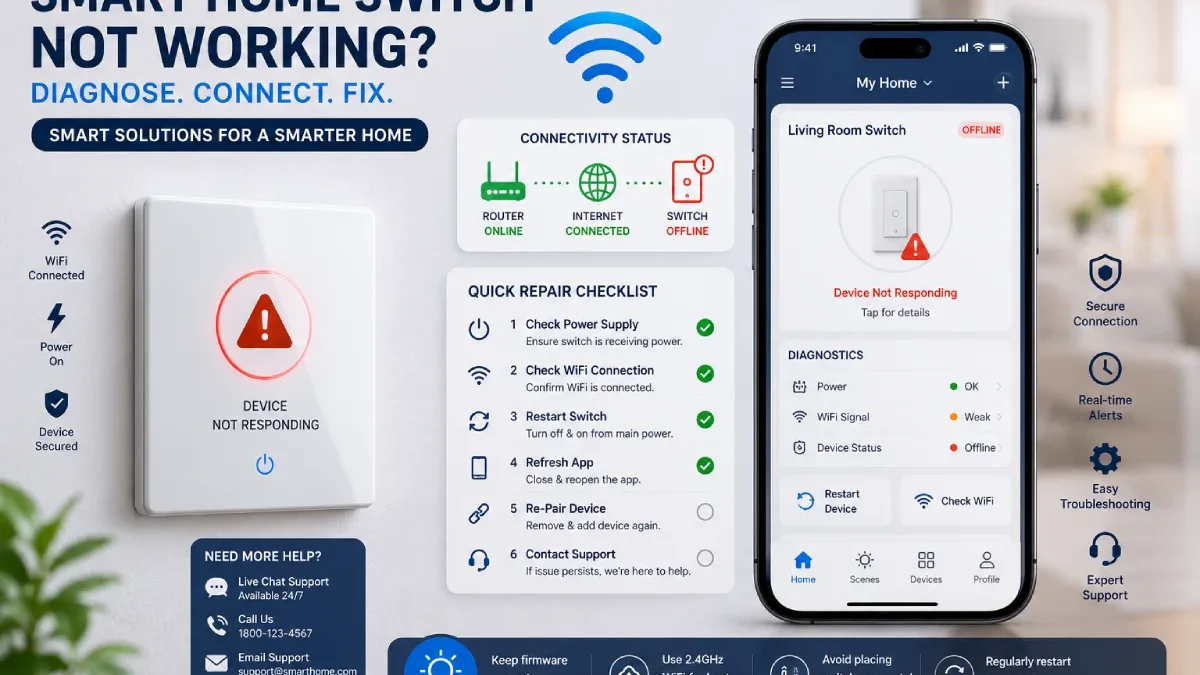

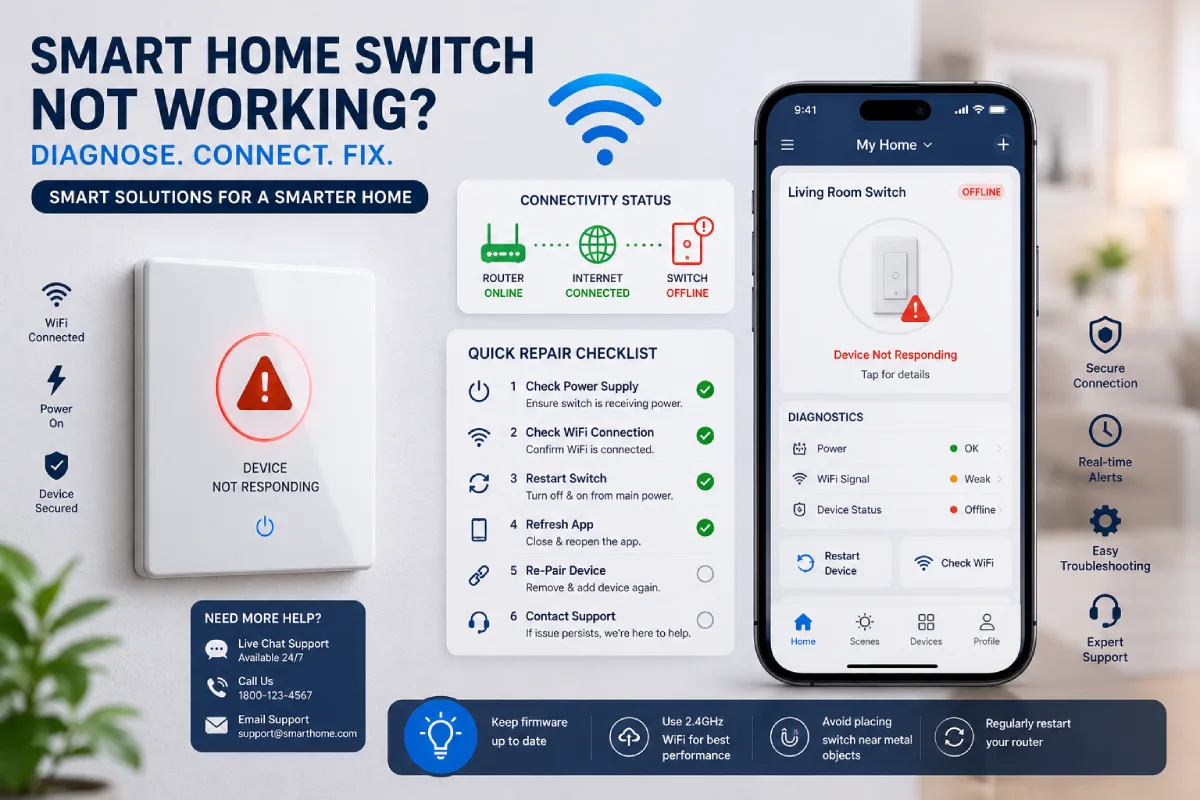


Introduction – Smart Switch Not Working
Having trouble with your smart switch? You’re not the only one. Like any home automation product, smart switches can sometimes have problems connecting, not setting up correctly, problems with your voice assistant, or things going wrong in the application.
Fortunately, the majority of problems with the smart switch can be solved without needing to replace the device. Common causes of failure include a poor WiFi connection, bad wiring, old software or firmware, or misconfigured parameters.
Covers the most common smart switch problems, why they happen, and how to resolve them step-by-step, so you can have your smart home working again as soon as possible.
Table of Contents
Why Smart Switches Stop Working
Whereas traditional switches are relatively simple due to their single switch, smart switches are more complex because of many components.
These include:
- Electrical wiring
- WiFi network
- Mobile app
- Cloud services
- Voice assistants
- Firmware
If any of these components is faulty, it will result in a malfunctioning switch.
Quick Troubleshooting Checklist
Before you get into the advanced fixes, make sure the basics are okay.
Verify These First
- Power is present at the switch
- WiFi is working
- App is online
- Router is functioning normally
- Firmware is updated
- Voice assistant services are internetbased
Most problems can be solved in minutes by just checking these items first.
Problem #1: Smart Switch Has No Power
One of the typical problems is a switch that looks totally dead.
Symptoms
- No LED indicator
- No response from buttons
- Device missing from app
Possible Causes
- Tripped breaker
- Loose wiring
- Failed connection
- Power outage
Fix
- Check the circuit breaker.
- Using a tester, check the power.
- Inspect wiring connections.
- Make sure that line and neutral are tightly connected.
If power is dead then the switch would not work no matter what setting the apps are in.
Problem #2: Smart Switch Not Connecting to WiFi
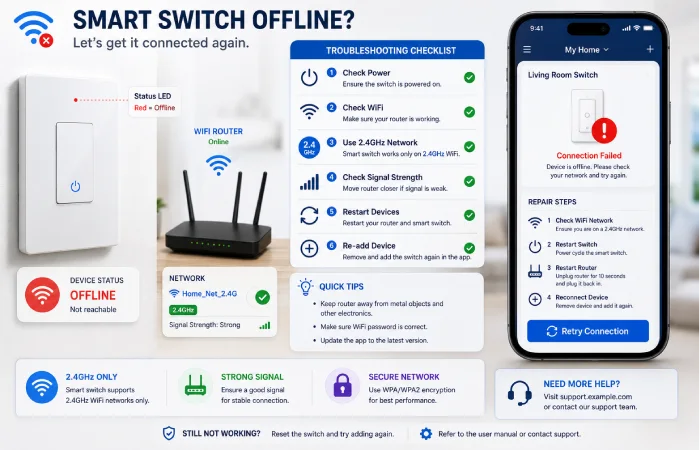
WiFi troubles are the most widely spread smart switch problems.
Symptoms
- Setup fails
- Device appears offline
- Frequent disconnects
Common Causes
- Weak signal
- Incorrect password
- Unsupported network
Fix
Verify Network Type
Most smart switches only support:
- 2.4GHz WiFi
A significant number of setup failures happen when users try and connect through 5GHz.
Restart Devices
- Turn off router
- Turn off smart switch
- Wait 30 seconds
- Restart router first
- Switch the power on again
Power cycling often fixes temporary network problems.
Problem #3: Smart Switch Keeps Going Offline
Symptoms
- Works intermittently
- Frequently disconnects
- Appears unavailable in app
Causes
- Poor signal strength
- Router congestion
- IP assignment issues
Fixes
Improve Signal Quality
Move the router closer or install:
- Mesh WiFi
- Range extenders
Reduce Network Congestion
Unplug idle peripherals and reboot any networking equipment.
The most common reason for connection errors to the smart switch are due to poor WiFi signal strength.
Problem #4: Voice Assistant Cannot Control Switch
Numerous people who own a home face problems with Alexa, Google Assistant and Siri.
Symptoms
- Voice command fails
- Device not discovered
- Assistant says device not available
Fix
Verify Device Connectivity
Make sure the switch looks correct on the manufacturer‘s app, shown online.
Re-Link Accounts
- Remove integration
- Reconnect manufacturer account
- Run device discovery again
When there is a lack of synchronization in the cloud, voice assistants usually do not work.
Problem #5: Smart Switch Not Responding in the App
Symptoms
- App shows device offline
- Commands fail
- Delayed responses
Fixes
Update the App
Install the latest version.
Log Out and Back In
Refreshing authentication restores the communication.
Reinstall the App
Corrupted app data can block communication.
Problem #6: Lights Flicker When Using Smart Switch
Causes
- Incompatible bulbs
- Incorrect dimmer settings
- Wiring issues
Fixes
Verify Bulb Compatibility
Some smart dimmers require:
- Dimmable LED bulbs
- Compatible fixtures
Adjust Dimming Range
Most apps offer minimum brightness control;
Problem #7: Smart Switch Installation Problems
Much of the problem with first-time configuration is often due to improper installation.
Common Mistakes
- Swapped line/load wires
- Missing neutral wire
- Loose ground connection
Solution
Double-check the fixturing wiring diagram provided by the manufacturer.
Always ask! If unsure, a licensed electrician should be called for advice.
Problem #8: Smart Switch Cannot Reconnect After Router Change
A new router should be connected to the computers; otherwise, the connection dropouts and limits the connection.
Why It Happens
The switch still stores:
- Old WiFi name
- Old password
- Previous network settings
Fix
Perform a complete reset and re-attach the switch to the new network.
Problem #9: Home Automation Routines Stop Working
Symptoms
- Schedules fail
- Automation scenes stop triggering
- Timers do not activate
Causes
- Cloud synchronization issues
- Device renamed
- Integration failures
Fix
Review:
- Device names
- Automation settings
- App permissions
The issues with home automation are often not hardware failures but rather configuration problems.
Problem #10: Smart Switch Won‘t Enter Pairing Mode
Symptoms
- LED does not blink
- Device cannot be discovered
Fix
As a general rule, most devices need to be held for 5–10 seconds with the reset button until the lights start to flash.
If unsuccessful:
- Disconnect power
- Restore power
- Attempt reset again
Problem #11: Firmware Update Failure
Firmware updates improve:
- Stability
- Security
- Compatibility
Fixes
- Ensure strong WiFi
- Keep power connected
- Other errors Incorrect username and password, or no account exists with this username. Retrying later, if the server is busy.
Avoid interrupting firmware updates.
Problem #12: Smart Switch Hardware Failure
Occasionally the device itself breaks down.
Signs
- No power even though wired correctly
- Persistent connectivity failures
- Random reboots
- Physical damage
Solution
- For under warranty, contact manufacturer support or obtain a replacement device.
How to Perform a Smart Switch Reset
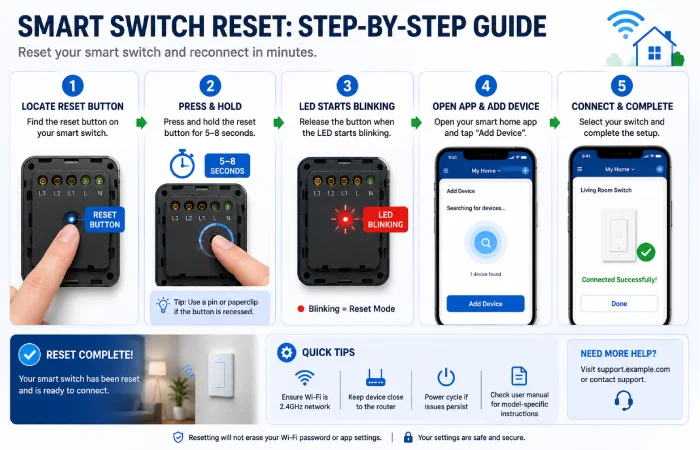
A factory reset will fix many of the long standing problems.
Generic Reset Process
- Hold reset button
- Wait 5–15 seconds
- LED begins blinking
- Release button
- Reconfigure through app
A lot of WiFi switch problems can be simply resolved by a correct reset and setup.
Smart Switch Troubleshooting Flowchart
| Problem | First Action | Second Action |
| No Power | Check Breaker | Inspect Wiring |
| No WiFi | Verify 2.4GHz | Reset Device |
| Offline Device | Restart Router | Reconnect Device |
| Voice Assistant Failure | Re-Link Account | Rediscover Device |
| Flickering Lights | Check Bulbs | Verify Wiring |
| App Failure | Update App | Reinstall App |
Preventing Future Smart Switch Problems
Keep Firmware Updated
Manufacturers frequently release fixes.
Use Reliable WiFi
Strong WiFi improves stability.
Avoid Cheap Network Equipment
Quality routers are the backbone of a smart home.
Document Installations
Keep records of:
- Wiring diagrams
- Device locations
- App accounts
This simplifies future troubleshooting.
Frequently Asked Questions
Why isn‘t my smart switch functioning?
Typical causes would be power loss, WiFi problems, application errors, wrong wiring, or firmware bug.
What is the reason that my WiFi won‘t work with my smart switch?
The most common failures are because the switch is connected to a unsupported network, a low signal, or wrong password.
How do I reconnect a smart switch?
After restarting, check the WiFi. Make sure it is enabled in the network/router settings. Rejoin the WiFi using the router manufacturer application.
Is there a time you should reset my smart switch?
In the cases where the switch will not be able to connect, is disconnected or has repeating software errors, a reprogramming is suggested.
Is it possible to operate a smart switch without being connected to the internet?
The majority of switches work manually in the absence of internet connection.
How often do smart switch malfunction?
No. Mostly caused by WiFi, configuration or installation problems rather than hardware.
Smart Switch for Home Resource Hub
Explore smart switches for home automation, setup guides, smart lighting control, Alexa and Google Home integration, energy-saving solutions, troubleshooting tips, and smart home ideas for modern living.
Conclusion
The smart switch not functioning can most often be attributed to the aforementioned WiFi or app setup, power source, or mistakes made during installation, rather than a bad product. With a methodical troubleshooting procedure, most common malfunctions can be remedied swiftly and without hardware replacement.
When struggling with WiFi switch problems, reconnecting a smart switch after router migrations, automation failures, or resets. Here are some troubleshooting tips that will restore dependable operation in your home automation system.