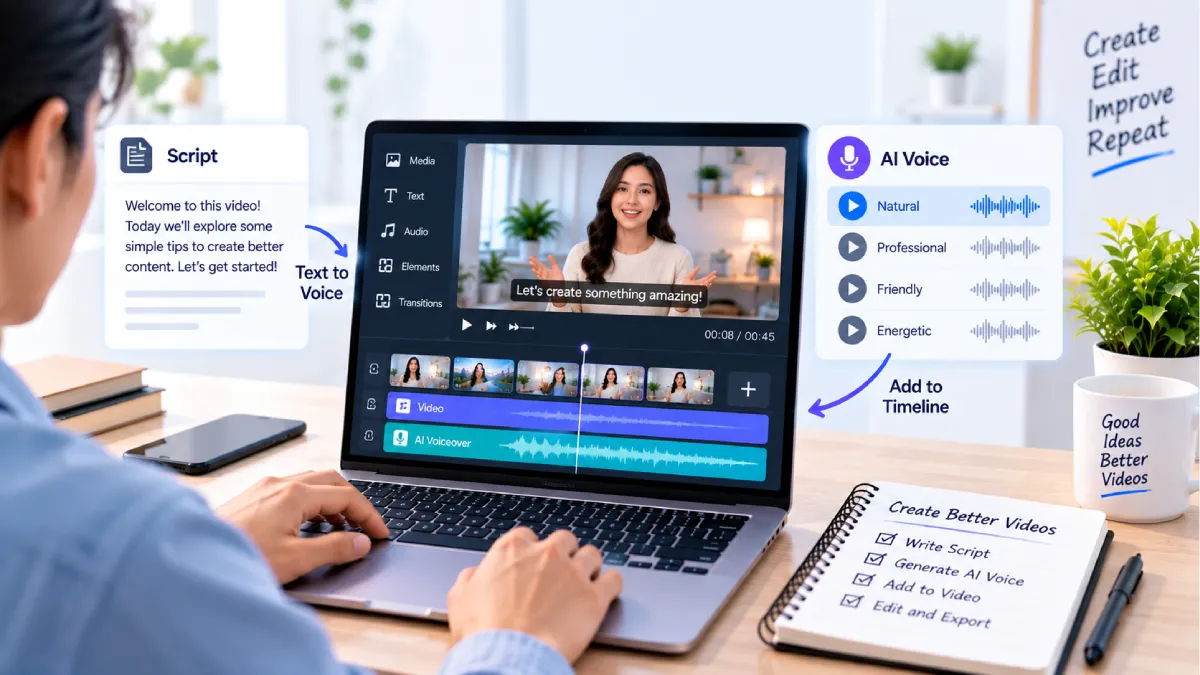



How to Add AI Voiceovers to Videos for Free
There is no requirement for having a microphone or recording studio in order to create narration for a video.
AI voice tools take a script and turn it into audio. You can take that audio and run it over your video and then tune it to the frame of your scenes.
That is good for YouTube videos, Shorts, tutorials, documentary, explainer videos, any type of brand related content and social media posts.
The basic process is:
Create a script → Select an AI voice → Produce the audio file → Insert it in your video → Synchronize timing → Export
There are many free-to-use text-to-speech applications. Most free versions have restrictions.
This article describes how to add free AI voiceovers to videos, what tools are best, how to produce a convincing voiceover, and what to look out for when publishing.
Table of Contents
What Is an AI Voiceover?
An AI voiceover is generated artificial intelligent voice narration from text.
You can not use your own voice, so you input or paste a script into an AI voice generator.
The tool outputs an mp3 file or transfers the synthesized speech into a video editor.
AI voiceovers can be used for:
- YouTube videos
- Shorts and Reels
- Tutorials
- Product demonstrations
- Educational videos
- Presentations
- Online courses
- Marketing videos
- Faceless videos
The quality is a result of the voice model, text, pronunciation, speed, and editing.
Best Free AI Voice Generators
A number of applications are available to generate AI voiceovers without payment upfront.
CapCut
Cap Cut features a text-to-speech function built into the app, meant for video creators.
The existing text-to-speech feature, provides one of the extensive voice collections as well as the options for multi-lingo and the ability to instantly generate speech and to directly utilize it in a video project. CapCut states that core text-to-speech is free, but certain premium voices and features may require a subscription plan.
Best For
- Shorts
- Reels
- YouTube videos
- Beginners
- Quick voiceovers
Pros
- The difficult to use
- Voice generation within the editor: The text editor also offers the ability to have the content spoken. To use this feature for the current text, click the top right icon of the text editor.
- Single language/voice styles.
- Simple workflow
Cons
- Certain voices are premium.
- Features offered may be different
ElevenLabs
ElevenLabs is heavily focused on AI generated speech and does have a free plan.
Currently, 10,000 credits a month on the free plan are provided, with text-to-speech and other AI audio functions. This is arguably about 10 minutes worth of text-to-speech audio by ElevenLabs account of your usage.
Best For
- Natural-sounding narration
- YouTube voiceovers
- Educational content
- Voice experimentation
Licenses is also a key limitation. ElevenLabs offers commercial rights with paid plans, while free plan materials are available for non-commercial use.
VEED
VEED has built in the AI TTS into its online video editor.
Once you have entered your script, you can choose a voice and language, click generate and insert it into the timeline. VEED already has for free over 50 supported languages and AI voices. AI voice free availability in VEED is not the same for all countries, free users might get some limited free AI credits according to the country.
Best For
- Online video editing
- Videos from social media.
- Beginners
- Voiceover be video editing
How to Add AI Voiceovers to Videos for Free
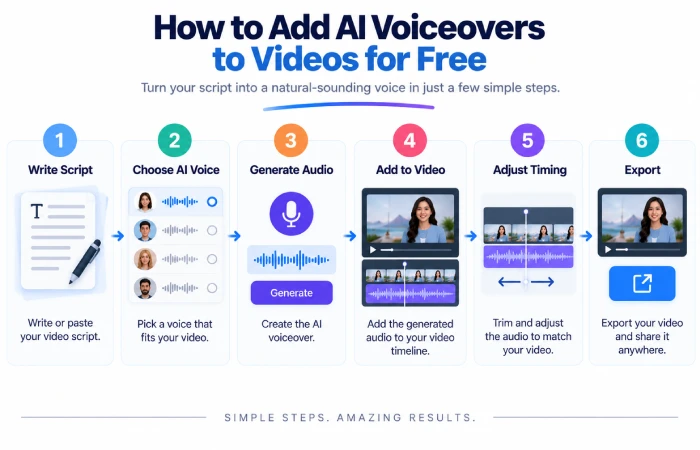
This is simpler than it appears.
Step 1: Write Your Script
Provide the phrase you would like the AI voice to pronounce.
Presume that, it‘s fun. Don‘t write complete sentences. For example, “In search of new jobs”.
For example:
Less natural:
Today we will give the in depth detail of how to choose a good quality laptops for education.
More natural:
Today, we will see how to select a laptop for college.
The 2nd version is more natural sounding for an AI voice to pronounce.
Step 2: Choose an AI Voice Generator
Choose a simple tool according to the scope of your project.
Cap Cut is useful when you already editing the video in there
ElevenLabs is a good choice if narration quality is your top concern.
The VEED is a handy tool to create voice and work on video in a dedicated browser workspace.
Step 3: Select the Voice
Listen to a bunch of different voices before you settle on one.
Think about:
- Tone
- Speed
- Accent
- Age
- Gender
- Energy
- Language
A major educational film would probably require a laid-back narrator.
The shorter the social video, the more lively the voice.
Step 4: Generate the Voiceover
Copy and past your script into the tool. Press play to generate sound.
You shouldn‘t create the whole thing straight away.
Begin with a brief introduction.
Check the pronunciation isn‘t wrong, listen for odd hesitations, or pronunciation that sounds odd.
For ElevenLabs, keep in mind that it consumes credits to produce speech, so each generation could decrease your monthly quota.
Step 5: Add the Voiceover to Your Video
Download the audio, if the tool has run then an individual audio file is generated.
Next, upload it into your video editing software.
Position the voiceover on the audio timeline below the video.
Regarding projects where an editor with inbuilt text-to-speech voiceovers (such as CapCut, VEED) is essential you may include the voiceover within the project.
Step 6: Match the Voice to the Video
Don‘t miss out here!
The narration is in time with the images.
If you are talking about a particular product specification, show the appropriate image or screen of that product. For example.
Fill in. Cut out sections of video where the audio narration has already moved on to the next section.
Step 7: Adjust the Audio
Ensure the user‘s voice for the AI is difficult to distinguish.
If you use background music, stay below the level of the narration.
And listen for quick transitions in volume, not only from one passage to another.
Step 8: Add Captions
Captions can help your video be more understandable when viewing on a mobile device.
In several video editing software programs, you can utilize automatic captions and correct them in a second step.
Pay extra attention to:
- Names
- Numbers
- Technical terms
- Brand names
- Foreign words
Step 9: Review the Final Video
Have a look at the complete video before publication.
Listen for:
- Wrong pronunciation
- Robotic sections
- Long pauses
- Incorrect captions
- Timing problems
- Background noise
- Heavy sound( music too loud)
Just a couple of corrections can make a big improvement.
How to Make AI Voiceovers Sound Natural
The quality of an AI voice could be significantly improved by having a script dictated.
Use Short Sentences
What can be read more clearly and should be easier for any AI voice to read.
Add Punctuation
Commas, fullstops, question marks and paragraph breaks are used to pace the argument.
Use them in normal part of speech and sentence formation.
Avoid Difficult Wording
Restructure it into a more casual or conversational style. You don‘t want to write like an academic paper.
Write the way a human would speak.
Add Natural Pauses
Break up If the concept is too wordy, then try breaking it up into different sections.
For example:
“There‘s three things to look at. Battery life. Storage. And processor speed.”
Sometimes it sounds a lot clearer if you write it in a straightforward way instead of frontloading just the first part of the sentence.
Check Pronunciation
Certain AI voices may have difficulty pronouncing irregular names, abbreviations, or technical terms.
Intruduçting a word: Alter the spelling, or phonetize it in an input that the system can accept.
AI Voiceover Examples
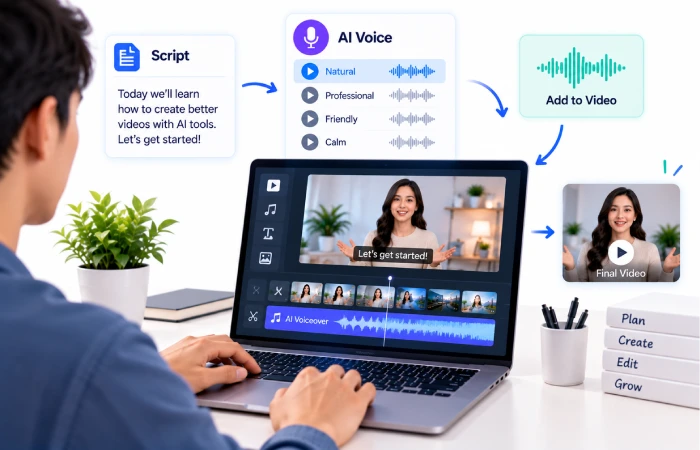
There are many cases for which the use of AI Voiceovers are a real benefit.
YouTube Tutorial
You can compose a tutorial guide, produce the narration, insert screen shots and screen recordings, and overlay the AI voice on the visual images.
Faceless YouTube Video
For a faceless channel, the AI narration replaces the recording of the voice.
But that value still has to be in usefull information, in original salolution, and in good editing.
Social Media Reel
For a brief script, have a computer voiceover it and blend it with speeded up images, video extracts, captions and basic graphical illustrations.
Product Video
You can focus on product features by not recording the presenter.
Educational Video
AI is effective for lessons, diagrams, slides, and just about anything that doesn‘t require human narration.
AI Voiceover Features to Compare
Before you are selecting a free AI voice generator, consider comparing the features which are most important to you.
Voice Quality
The sound needs to be natural and understandable.
Language Support
Ensure the tool facilitates the language or accent required.
Voice Styles
Some give variations on the style of narration, the characters, the presentation or social content.
Speed Controls
You can control the speed of the voiced narration so the narration better fits your video.
Emotion and Expression
Some other advanced systems have more controls that make the voice sound more expressive.
Audio Export
Verify whether the created sound is downloadable and determine in which formats.
Usage Limits
Limited free plans such as limited characters/minutes/generations/monthly credits.
Benefits of AI Voiceovers
No Microphone Needed
It is possible to create narration without recording the person‘s voice.
Faster Production
Voice can be produced much more rapidly than recording different takes.
Consistent Narration
It is possible to use the same AI voice for different videos.
Multiple Languages
Most of the AI voice applications available are capable of handling multiple languages. This aspect makes it easy to generate content in different languages.
Take Cap Cut, for instance, it shows many languages on its text-to-speech system. Similarly, VEED provides over 50 languages for its text-to-speech functionality at present.
Easy to Change
Whenever you edit a script, you can simply generate a new voiceover without re-recording the whole section.
Limitations of Free AI Voice Generators
Free tools can be very good, but they do have limitations.
You may encounter:
- Monthly 200. If one phone in a family charges 200 on calls in a month, then it totals a 6000 per year. If two or more phones in a family charge the same amount, then the total one pays jumps to 12000, per year.
- Credit limits
- Limited voices
- Premium voices
- Watermarks from related exported videos.
- Commercial-use restrictions
- Region-based availability
For example, the free plan by ElevenLabs has an allowance of credits it can use each month and does not offer the commercial-use rights that are given on the paid plans.
Additionally VEED mentions that free AI credits are limited to certain areas.
Always verify the current terms before using AI-generated audio in a commercial context.
Common Mistakes to Avoid
Using a Robotic Script
An even good-quality AI voice not too noticeably sounds very professional if the script is badly written.
Making the Voice Too Fast
Poor voiceover can ruin an otherwise high quality production.
Ignoring Timing
The narration and the visuals should be synchronized.
Using Too Much Background Music
The narration should be audible to the viewer.
Not Checking the Audio
Must always hear the final voice over as a whole from start to finish.
Simple AI Voiceover Workflow
For your first project, keep the process simple:
1. Write a short script.
2. Choose an AI voice tool.
3. Select a suitable voice.
4. Generate a short test.
5. Check pronunciation.
6. Generate the complete voiceover.
7. Add it to your video.
8. Match the timing with your visuals.
9. Add captions and background music.
10. Review and export.
Which is simple enough to make a basic AI-voiced recording, without any specialist equipment.
FAQs
Can I add an AI voiceover to a video for free?
Yes. Many software like CapCut offers free text to speech, while other software have limited free credits or application.
What is the best free AI voice generator?
For straightforward editing scenarios, CapCut is also very handy as voice generation is integrated with the editing process. ElevenLabs is another good candidate, when a natural-sounding voiceover is the primary goal, though a free plan imposes certain usage and licensing restrictions.
Do I need to record my own voice?
No. With AI text-to-speech, you can create narration from the text you have typed.
Can AI voiceovers be used for YouTube videos?
Yes, but the key is content. Make sure your video has something useful in it, or original commentary, or some other reason for people to watch it.
Can I use AI voiceovers commercially?
Verify the license of the specific tool before using it. Free plans do not always have the same commercial rights than paid plans. ElevenLabs is an example of a tool where the commercial rights are kept for paid plans.
Can I make AI voiceovers in different languages?
Yes, quite a few AI voice applications are capable of multiple languages, but the available languages and voices depend on the application.
Final Thoughts
Learning how to add AI voiceovers to videos for free is a simple way to improve your video production without buying recording equipment.
Start with a short script and test the voice before generating a long project.
CapCut is a convenient choice when you want text-to-speech directly inside a video editor. ElevenLabs is useful for creators who care strongly about voice quality, while VEED combines AI voice generation with browser-based video editing.
The AI voice is only one part of the video.
A clear script, good pacing, useful visuals, accurate captions, and clean audio still matter. Use AI to make production easier, but review the final result yourself before publishing.
This guide is part of our How to Use AI Tools to Make Videos for Free cluster. You can also explore free AI video generators, how to make AI videos from text for free, free AI tools for YouTube video creation, how to create AI avatar videos for free, and free AI video editing tools for beginners.