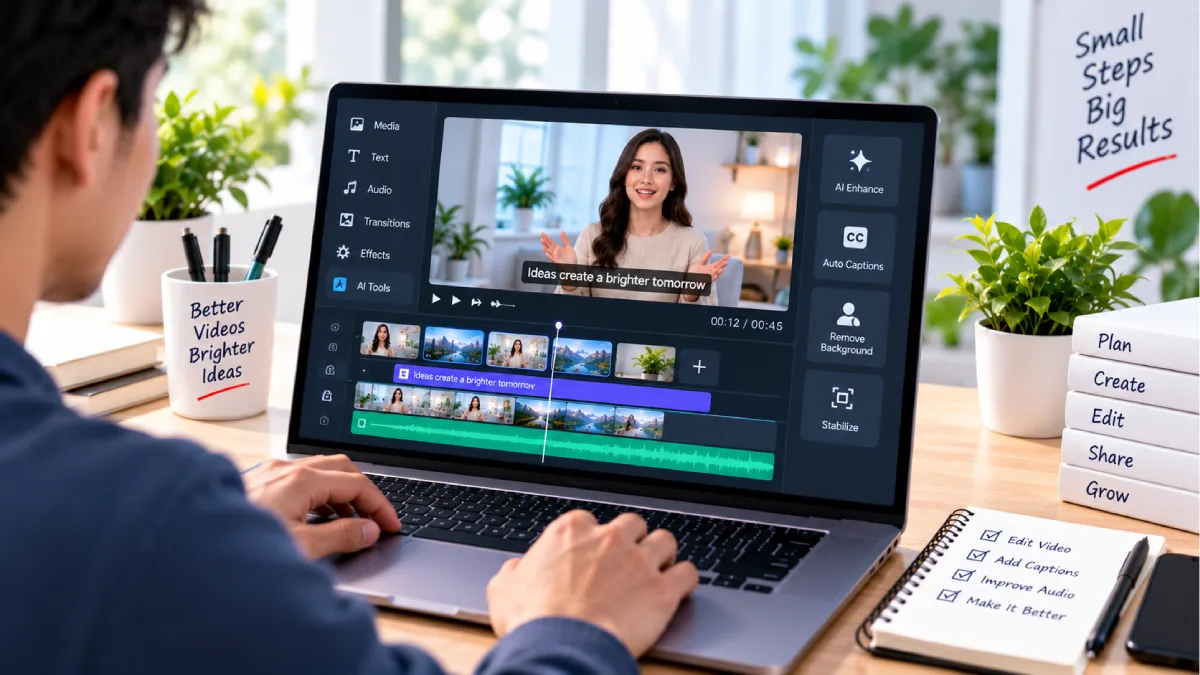



Free AI Video Editing Tools for Beginners
Editing video may seem complicated if you are using it for the first time.
Cut out clips; erase errors; add captions; clean audio; insert images; ready the video for YouTube or social media.
AI video editing tools automate much of the work for these tasks.
Many new editors are out there that have features like automatic captioning, removing silence, audio cleanup, making B-roll and editing from the transcript. This allows new editors to have less time spent on learning advanced editing controls, and more time in bettering the videos they have to offer.
The handbook for the best free AI video editing software for beginners and what to look out for and how to use it and what you are going to get in the free version.
Table of Contents
What Are AI Video Editing Tools?
AI video editing softwares employ artificial intelligence to speed up some aspects of editing.
A standard video editor allows you to edit and create clips yourself.
One tool that can do some of this work for you is an AI video editor.
Depending on the platform, AI can help with:
- Automatic captions
- Removing silence
- Deletion of filler words
- Audio cleanup
- B-roll suggestions
- Background removal
- Video resizing
- Transcript-based editing
- The actual construction of social media video.
However, you can still have the final say while letting the AI take care of some of the monotonous tasks.
Best Free AI Video Editing Tools for Beginners
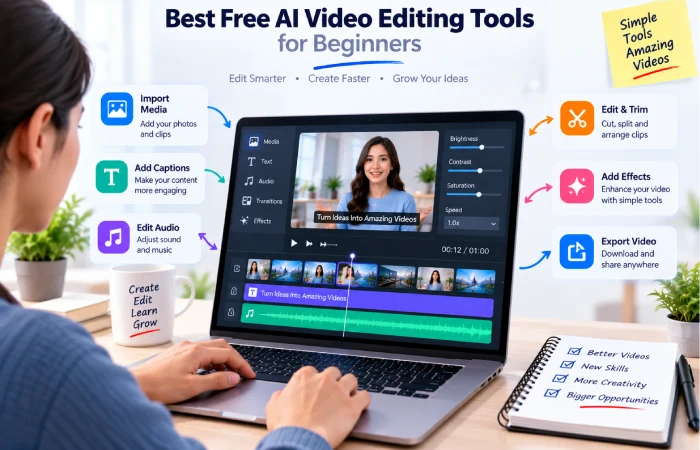
There are good choices for all of them but it comes down to what sort of video you are making.
CapCut
CapCut has become a choice for beginners for quick, easy editing of short videos, social media and general video creation.
Its AI video editor has functions such as trimming, scene rearrangement, captioning, and refinement. Aside from the video editor, Cap Cut also provides other AI tools for video creation and editing, but the features may be limited by different regions.
Best For
- YouTube Shorts
- Instagram Reels
- TikTok-style videos
- Simple tutorials
- Social media content
Pros
- Simple graphical interface
- Useful AI features
- Best for short form video
- Beginner-friendly workflow
Cons
- Features may also be regionally specific:
- There could be limitations to the advanced tools
VEED
The VEED editor works in the web browser so new users do not need to download any software, they can start editing a video right away on their desktop.
With features such as Auto Captions, Clean Audio, Filler word removal, Add B-roll, Auto-resizing, Its AI editing features could perform certain operations without user involvement.
The free version offers editing features and 720p export, but exports are watermarked. The free plan offers some AI tools as limited trials.
Best For
- Online video editing
- Social media videos
- Talking-head videos
- Beginners wishing to use AI for editing
Descript
Descript is a godsend for those early filmmakers who shoot a voice-heavy video.
Rather than working purely from the timeline you could work from a transcript. Text editing may also edit the video itself.
Descript‘s existing free account features 1 hour of media editing time per month, 100 AI credits, and 720p exporting capabilities. This plan also contains the basic AI editing features.
Best For
- YouTube tutorials
- Podcasts
- Interviews
- Screen recordings
- Talking-head videos
Pros
- Text-based editing
- Automatic transcription
- Useful AI tools
- Suitable for spoken content.
Cons
- The allowance for free use:
- The higher-end features may need credits to access or use or you may have to upgrade to a paid plan.
Canva
Beginner-level, if you need both video editing and graphic design, text, presentations, and social media marketing combined.
It‘s a flexible, easily adaptable choice, when advanced cinematic editing isn‘t necessary for your video, but titles, fairly straightforward animations, images, and corporate branding elements are.
Best For
- Explainer videos
- Social posts
- Educational videos
- Slideshows
- Plain Branded Video
Pros
- Simple interface
- Templates
- Graphics & video in one workstation
- Easy for beginners
Cons
- Certain premium features are only available with a paid plan.
- More suited to basic cutting and editing rather than cinematic style film editing
Adobe Express
Adobe Express integrates basic video editing with graphics and social media creation.
Its free plan provides basic photo, video, and document editing features, over 100,000 static and motion templates, access to 1M+ royalty-free Adobe Stock assets, 5GB of storage, and a handful of generative AI capabilities.
Best For
- Beginners
- Social media producers
- Marketing videos
- This represents the content for simple businesses.
Free AI Video Editing Tools for Beginners Comparison
| Tool | Best For | AI Features | Beginner Friendly | Main Free Limitation |
|---|---|---|---|---|
| CapCut | Short-form videos | Strong | Yes | Some features vary |
| VEED | Online editing | Strong | Yes | On watermarked free exports: The class code for free exports is the bottom right four-digit class code. All waters are subject to the need to add a watermark when the water mark is not noted. |
| Descript | Talking videos | Strong | Yes | Low usage of media & AI |
| Canva | Graphics and some video clips | Available | Yes | Some features are premium. |
| Adobe Express | Video and design | Available | Yes | Narrow AI and luxury assets |
There is not one tool that suits all.
If I am a beginner and create Shorts, maybe I should use CapCut. If I edited interviews, maybe I should use Descript. And if I want to create a business presentation, I can use Canva or Adobe Express to easily create it.
How to Use AI Video Editing Tools for Beginners
The simple processes.
Step 1: Upload Your Video
Begin with your unprocessed footage.
You can include photos, video clips, screen recordings, music, and so on.
It is recommended that you keep the original files saved separately prior to beginning editing.
Step 2: Remove Unwanted Sections
Errors in cuts, redundant sentences, extended pauses, extra footage.
Many AI tools are able to automatically detect silence and filler words.
VEED is another, offering both AI silence and filler word detection and removal.
Step 3: Add Automatic Captions
Instead of manually typing out each sentence, generate captions.
Always check them afterwards, particularly if they include the following: names, numbers, technical words and strange words.
Step 4: Improve the Audio
Apply AI audio cleanup to recordings that include background noise or that have inconsistent audio levels.
Simple video looks more professional if accompanied by clean speech.
Step 5: Add Supporting Visuals
Show relevant images, screencasts, graphics or B-roll where appropriate
Avoid including pictures or images simply for visual enhancement.
Step 6: Add Text and Music
Avoid very complicated wording.
Use the music discreetly. Make sure the speaker‘s voice is heard above it.
Step 7: Export the Video
Select the appropriate format for your website.
For instance, video is commonly Vertical for a majority of short form social media and Horizontal for regular youtube content.
Important Features to Compare
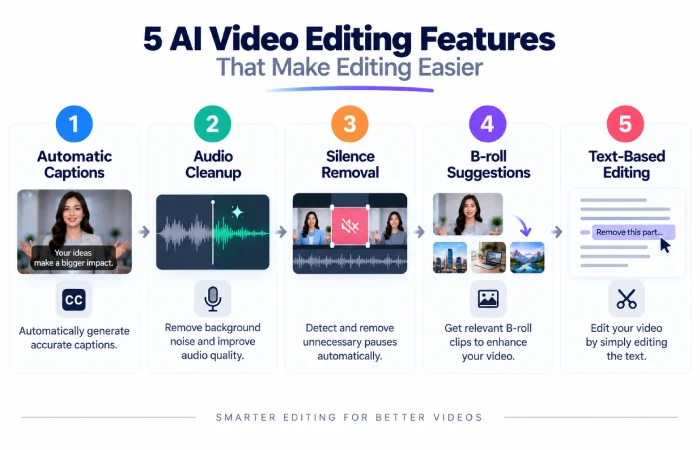
If you’re looking at free AI video editing tools suitable for beginners, look beyond the feature list.
Automatic Captions
Captions reduce the amount of time necessary, and help you easily keep up with the video.
AI Audio Cleanup
Suitable for recording in situations where there is background noise or an unstable sound source.
Filler Word Removal
Useful for talk videos and interviews.
Silence Removal
Can allow videos to become tighter without you manually sifting through every pause.
AI B-Roll
Certain applications can recommend or even add B-Roll footage as you are speaking. VEED, for instance, provides AI B-roll as part of its AI editing platform.
Text-Based Editing
Descript can be particularly handy here because you can edit spoken content by using the transcript.
Export Quality
Always verify the free export resolution and addition of a watermark.
Free AI Video Editing Tools Pricing
Although free plans are a good learning tool they tend to be limited.
VEED, which has a free plan for basic editing and exports at a resolution of 720p, outputs a watermarked export in its free plan.
Descript‘s current free plan provides: 1 hour of media processing a month, 100 AI credits and exports up to 720p.
Adobe Express is offering a $0 free plan which provides basic editing, templates, free assets, 5GB storage and limited generative AI functionality.
Be aware that limits in free-plan may change over time and therefore one should verify the pricing page of the platform before launching a large project.
Benefits of AI Video Editing for Beginners
Saves Time
AI has the potential to take on more repetitive work like captions, transcription, simple cleanup, etc.
Easier Learning Curve
The automated functions may be used by novices without prior comprehensive learning of all the advanced editing tools.
Faster Content Creation
You can go from the rushes to a draft faster.
Better for Small Projects
These tools are particularly helpful for Shorts, tutorials, social posts, interviews, and basic explainers.
Limitations of AI Video Editing
AI editing is useful, but is not infallible.
Automated captions may not always be accurate.
The AI editor might delete a significant pause.
There is a possibility the suggested B-roll is not relevant to the subject matter.
If audio cleaning is not used carefully, the sound can be altered by its use.
Always view the final video before publishing.
Common Examples
Someone just starting on YouTube with a tutorial video can take the recording and use Descript to generate a transcript, delete extra words, insert captions and finalize the video.
Shorts or Reels by a creator are able to be edited by Capcut to be truncated, add captions, apply basic effects and output in vertical format.
A person developing a business explainer might combine video, text, graphics and images into a straightforward composition with Adobe Express or Canva.
When it comes to AI cleaned online videos VEED can offer automatic captions, audio cleanup, filler word removal, and even help with b-roll.
Tips for Beginners
Just start with one editing tool instead of five.
Keep the first video very short.
Keep cuts simple, then add effects.
Carefully check automatic captions.
Music. Maintain a quiet background.
Keep the raw footage.
AI must not make every creative choice in your output for you.
Most of all, watch the completed video, right through to the end, prior to publication.
Pros and Cons of Free AI Video Editing Tools
Pros
- Principal directions of easy for beginners.
- Faster editing
- Automatic captions
- Audio AI Tools
- Useful templates
- Less manual labor
Cons
- Free plans have limitations
- Watermarks are added to some tools.
- AI can make errors when editing
- These more developed features could require payment.
- Specific features may be encountered according to regions
Final Thoughts
The top free AI video editing tools for beginners are suited to the content you make.
For short form content, Capcut is a solid platform to begin. VEED is ideal if you need to work with AI editing from within your web browser. Descript, in particular, is great if you‘re developing content around spoken word. Both Canva and Adobe Express can come in handy when combining visuals and video.
You do not have to get everything on your own to learn it all in one step.
Begin with cutting, captions, audio, and a simple visual. You can start experimenting with AI features after you feel comfortable with the fundamentals.
This guide is part of our How to Use AI Tools to Make Videos for Free cluster. You can also explore free AI video generators, how to make AI videos from text for free, free AI tools for YouTube video creation, and how to create AI avatar videos for free.