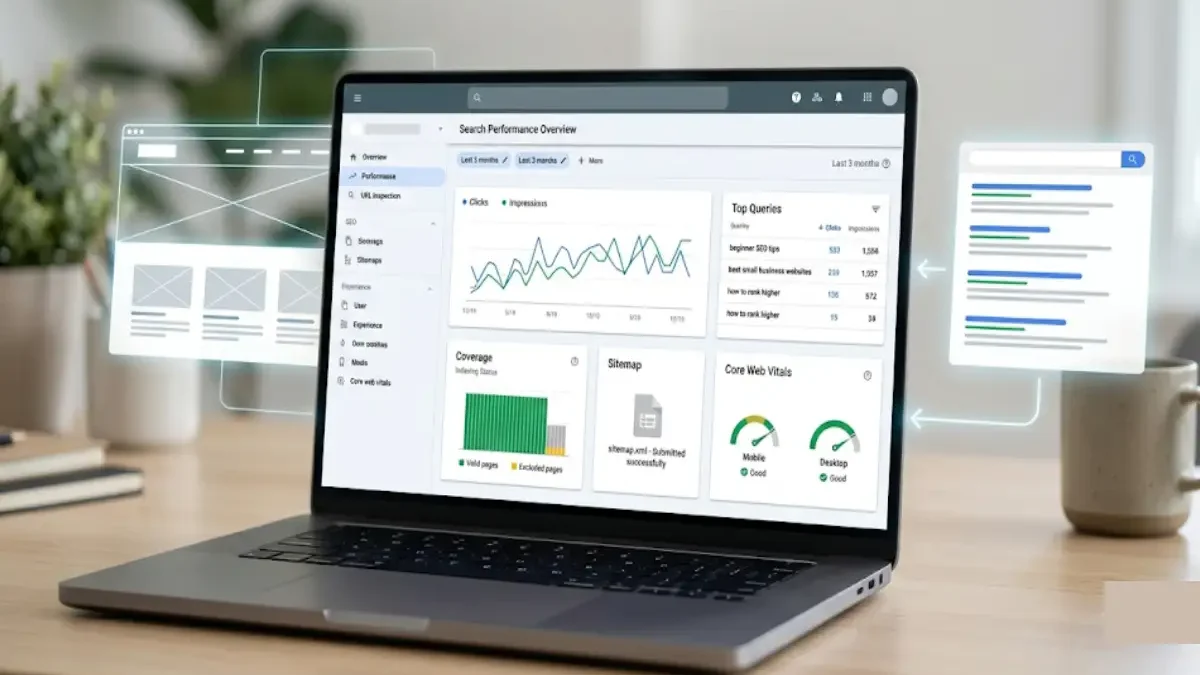

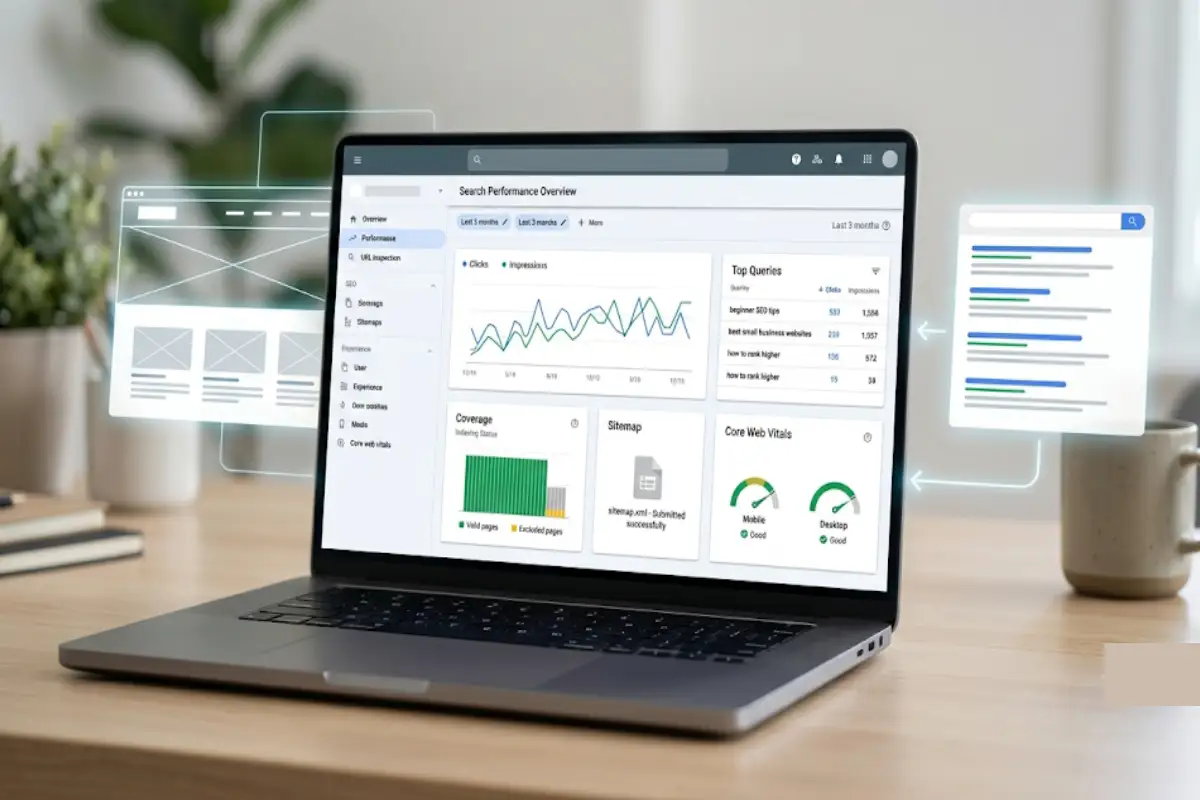


Google Search Console is no doubt one of the most useful tools for website owners and SEO beginners.
It can assist you in figuring out how Google finds and indexes your site, which searches deliver users to your pages and whether Google has identified some technical/indexing issues.
You do not need to be an SEO expert in order to begin using it.
In this guide to Google Search Console, I will show you how to create a Search Console property, add and verify your website, submit your XML sitemap, see what pages are indexed, use the Performance report, keep track of Core Web Vitals metrics, and troubleshoot typical problems.
Table of Contents
What Is Google Search Console?
Google Search Console is a Google tool that allows website owners to keep track of their website‘s appearance in Google Search.
It provides information about areas such as:
- Search queries
- Clicks
- Impressions
- Average position
- Page indexing
- Sitemaps
- Core Web Vitals
- Search-related issues
The data here is particularly helpful because it is the data directly relevant to your interaction with Google Search.
Search Console doesn‘t hold any promise of higher rankings. It simply provides you with the information you need in order to find both opportunities and troubles.
Why Use Google Search Console?
With Search Console, you can find out some important information about your site.
For example:
Is Google indexing my pages?
Which keywords are bringing impressions?
Which pages receive clicks from Google?
Are there indexing problems?
Are there technical issues affecting important pages?
It makes Search Console considered to be desirable by both fresh and established websites.
For a novice, one of the biggest benefits is that it is proving you how it really works in Google Search rather than used to making assumptions.
How to Set Up Google Search Console
Step 1: The initial stage is to add your website as a property to Search Console.
Google provides different property options, including:
- Domain property
- URL-prefix property
Your choice will be determined by how you wish to verify that the site is delivered and also how you wish to take control of the delivery.
Then Google will ask you to verify that you own the property, is if after you put it.
How to Verify Your Website
Verifies that you have ownership of the Site you are adding.
Google can offer a variety of verification options, depending upon the property type and setup.
Common methods can include:
- DNS verification
- HTML file upload
- HTML tag
- Google Analytics
- Google Tag Manager
The benefit of DNS verification for many website owners is that it covers the entire domain when using a Domain property.
Use the instructions displayed within your Search Console account; do not directly copy settings from one website to another.
When the verification is successful, Search Console has the ability to start delivering data for your property..
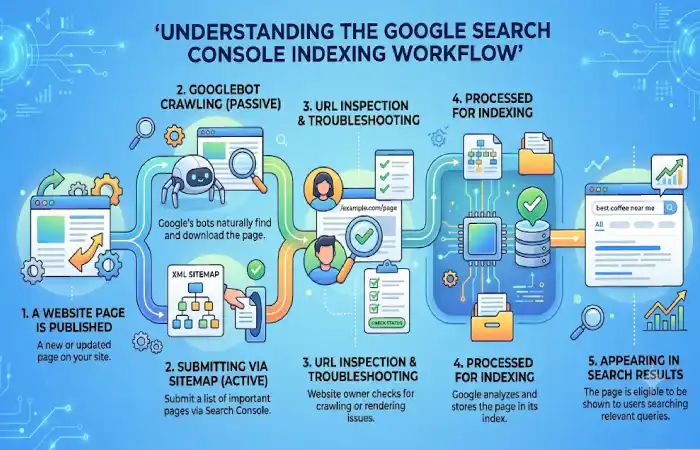
Step 1: Add Your XML Sitemap
An XML sitemap is made up of the URLs you want search engines to find.
Once your sitemap has been generated, it can be submitted through the Sitemaps section of Search Console.
A sitemap address often looks like:
https://example.com/sitemap.xml
Many content management systems can generate sitemaps automatically.
What Should a Sitemap Contain?
Your sitemap should include the pages of significance to you that you would like to be crawled by search engines.
Avoid filling it with:
- Broken URLs
- Redirecting URLs
- URLs that should not be indexed
- Unnecessary duplicate pages
A sitemap aids discovery but submitting a URL doesn‘t necessarily mean Google will crawling and indexing it.
For more information, see our Technical SEO Tutorial.
Step 2: Check Page Indexing
The Page Indexing field can actually tell you what pages Google has indexed and what pages it has not.
Under you can see (if you have the right settings enabled) the categories for indexed pages and pages not being indexed.
This is not the case for all non-indexed URLs.
For instance, a page can be excluded from indexing deliberately.
The important question is:
Are the pages you actually want in Google indexed correctly?
Check Important URLs First
Do not try to fix every warning at once.
Start with important pages such as:
- Homepage
- Main category pages
- Product pages
- Service pages
- Important articles
- Pillar pages
Address no more than what you think is absolutely necessary at a time.
Step 3: Use URL Inspection
If an important page is omitted from the index, work out why.
It can show you whether Google is aware of the page, and the presence of the URL within its index.
You may input a URL from your page here and see what Search Console has to say.
This can be useful when:
- A new page is not appearing in Google
- You recently updated an important page
- You changed a URL
- You want to investigate an indexing issue
Request indexing is also available in Search Console where relevant.
Don‘t keep asking to index a page over and over again if you‘ve not make any real changes. Asking to index a page isn‘t a ticket for Google to index the page today.
Step 4: Understand the Performance Report
The Performance report is one of the most useful sections in Search Console.
It displays how well your website ranks in Google Search.
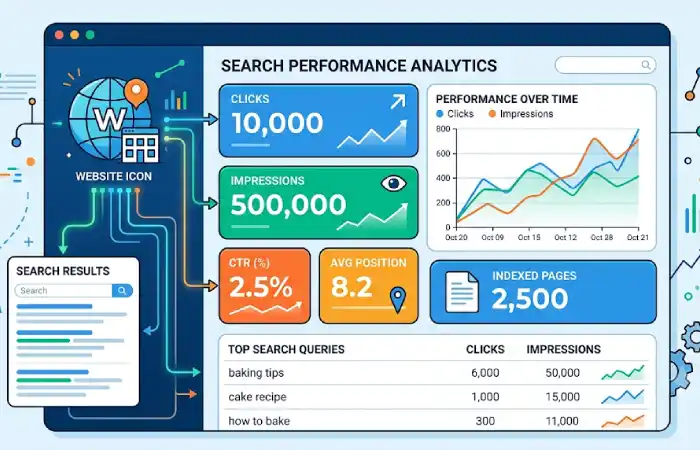
Important metrics include:
Clicks
The number of times users clicked your search result.
Impressions
Impressions the total amount of times that your site got displayed in Google Search..
CTR
Mainly clicks versus impressions.
Average Position
This provides a general indication of where your pages ranked for the searches covered by this report.
One should be careful to consider the metrics jointly rather than 1 each in isolation.
Understanding Search Queries
The Performance report can display the search queries that your website ranked for.
For example, a website about laptops may see queries such as:
- best laptop 2026
- laptop for students
- best gaming laptop
- laptop buying guide
This information can identify the topics your website is already ranking for.
It will also reveal questions that you would not have purposely probed.
How Query Data Can Help With Content
Imagine that this page gets numerous impressions for a related search, though only a handful of clicks.
You can inspect the page and ask:
- Does the title clearly match the search?
- Does the page answer the query?
- Is the content relevant?
- Does the result communicate its value clearly?
Hence the Search Console data can be used as a guideline to improve the content.
Analyze Pages
Another way to look at the site in search is, Search Console also provides information by page.
This allows you to compare:
- Which pages get the most clicks
- Which pages receive many impressions
- Which pages have stronger CTR
- Which pages have visibility but little traffic
Another common and unexpected finding is that older articles can sometimes attract a higher level of search activity than more recent articles.
That can also be useful for determining where to run your SEO campaigns.
Monitor Core Web Vitals
For applicable pages, a report of the Web Vitals in Search Console.
cover a wide range of key user experience issues, such as: loading, interactivity, and visual Constipator to null‘s.
With the report, we can find out the set of URLs having possible performance problem.
When page is having poor performance, find out the root cause instead of doing random changes.
Possible areas to review include:
- Large images
- Heavy JavaScript
- Slow server responses
- Third-party scripts
- Layout changes during loading
Must be optimized to the performance or measurements.
Finding Indexing Problems
Search Console can tell you why some pages are not being indexed.
Examples would be pages blocked by technical configuration, duplicate pages, redirects etc.
The trick is actually to understand why a URL is being left out.
An excluded page is nothing but a technical bug.
For example a redirected URL is not normally required to be indexed.
The appropriate reaction hinges on the cause displayed in the Search Console.
Common Search Console Issues
Page Not Indexed
If a vital page is missing from the index, then see the URL and find out what is wrong.
Check:
- Can the page be crawled?
- Is it accidentally blocked?
- Does it have an indexing directive preventing indexing?
- Is it a duplicate?
- Does it have a valid canonical URL?
- Is the page linked internally?
Sitemap Problems
If there is a message in Search Console indicating a problem with a sitemap, determine if the sitemap URL is accessible and if the URLs in it are working.
Crawling Problems
Crawling Error Can prevent Google from crawling a page or resource.
Sometimes technical configurations, problems with the servers or even the structure of the site can be the cause.
Duplicate or Canonical Problems
In the event of rambling URL versions with close content, Google may select a canonical URL.
Check your canonical setup if Search Console shows you choosing the wrong canonical.
How to Improve SEO Using Search Console
Don‘t treat Search Console like a dashboard that you only open when your website has run into trouble.
Find opportunities Make use of it.
For example, look for pages that:
Receive many impressions but few clicks
Subjects of these pages could be better titled, described or optimized to matching the search intent.
Also look for:
Queries where your page appears but receives limited visibility
These might show subjects to elaborate on or reinforce.
And look for:
Pages that are important but have indexing problems
Fixing technical barriers first tends to be a good idea before worrying about the rankings too much.
Google Search Console for New Websites
The new website may have limited Search Console data initially.
That is normal.
Start by:
- Verifying the website.
- Submitting the sitemap.
- Checking important pages.
- Monitoring indexing.
- Watching search impressions and clicks.
- Fixing important technical issues.
The more traffic the site receives and the higher in the search ranking the site gets, the more useful the Performance report is.
Google Search Console for Established Websites
Older websites may log into Search Console to perform more detailed analysis.
For example, you can compare:
- New versus old content
- Pages with rising impressions
- Pages losing clicks
- Search queries gaining visibility
- Pages with indexing changes
This assistance can also guide you to determine that which content should be revised, augmented, stripped down, or technically edited.
Simple Google Search Console SEO Workflow
A practical routine looks like this:
1: Check whether important pages are indexed.
2: Review new indexing issues.
3: Check sitemap status.
4: Review search clicks and impressions.
5: Identify pages with high impressions but low CTR.
6: Review useful search queries.
7: Check Core Web Vitals and important technical reports.
Step 8: Investigate major changes in traffic or visibility.
No need to spend hours inside of Google Search Console everyday.
Alternatively, it‘s fine to check periodically.
Google Search Console vs Google Analytics
These are used to answer the different questions.
Google Search Console is primarily concerned with your website‘s performance within Google Search.
Google Analytics – is a bit more general assessing the behavior of visitors on your site thereafter.
For SEO work, Search Console can help you understand:
- Search queries
- Impressions
- Clicks
- Search position
- Indexing
Analytics can help you understand things such as:
- Sessions
- Engagement
- Conversions
- User behavior
Combining use of both methods might allow for a more complete understanding.
Common Google Search Console Mistakes
Checking Rankings Only
Search Console offers much more than position information.
Clicks, impressions, queries, pages, and CTR can surface information that a single ranking number cannot.
Trying to Fix Every Exclusion
Included in our list were all the URLs that we believed should be indexed. But there were many more URLs excluded.
Prioritize the most relevant pages for your website.
Requesting Indexing Too Often
Indexing requests do not replace addressing technical or content issues.
Ignoring Search Queries
Content opportunities in the queries report.
You should not just check the total number of clicked.
Forgetting to Monitor Important Pages
Dedicate some time to scrutinize your important pages rather than your homepage.
Google Search Console Beginner Checklist
Before considering your setup complete, check:
- Website ownership is verified.
- The correct property has been added.
- XML sitemap has been submitted.
- Important pages are indexable.
- Important URLs have been inspected.
- Search performance is being monitored.
- Search queries are reviewed.
- Pages with high impressions and low CTR are investigated.
- Core Web Vitals are monitored.
- Major indexing problems are reviewed.
- Important technical changes are followed up in Search Console.
Final Thoughts
Google Search Console is among the best initial resources for one to learn the practical side of SEO.
You learn whether Google is able to discover your website, what pages for your site appears in search, what terms people are searching for and where your website might be having difficulties with indexing or performance.
Begin on a simple note: get your website verified, submit the sitemap and check your indexes. Perform points 4 and 5 and analyze search performance report.
Use Search Console to find content areas and technical issues for your website to focus on as it expands.
It needs to be integrated into your ongoing SEO routine and not just used once there seems to be a drop-off in traffic.
Continue learning through our Search Engine Optimization Tutorials and explore the SEO Basics for Beginners guide for the fundamentals.