
Last Updated: June 22, 2026
Update your iPhone’s software 1 Software Updates: the most important update One of the most important updates you’ll ever make is the latest software update for your iPhone; with it, you will secure and maximize the performance of your iPhone, as well as incorporate new functions and options, that’s not the matter if it’s version iOS17 or any number before that. Update software is easily accessible from iPhone and it won’t take more than 2 minutes to complete. Below, we’ll show you how.
Apple frequently updates iOS on your iPhone to close security holes and bugs, to add new capabilities and to extend battery life. If you don‘t install these updates, you risk exposing your iPhone to harmful security breaches and you are unable to take advantage of the latest applications and features.
In this guide, you‘ll learn:
- ✓ How to perform a manual iOS software update
- ✓ How to turn on the auto update function on iPhone
- ✓ How to update your i Phone’>How to update your i Phone.
- ✓ How do I resolve frequent iOS upgrade issues
Average time needed to search for updates: 1-2 min |Average time to download update: 15-45 min.
Table of Contents
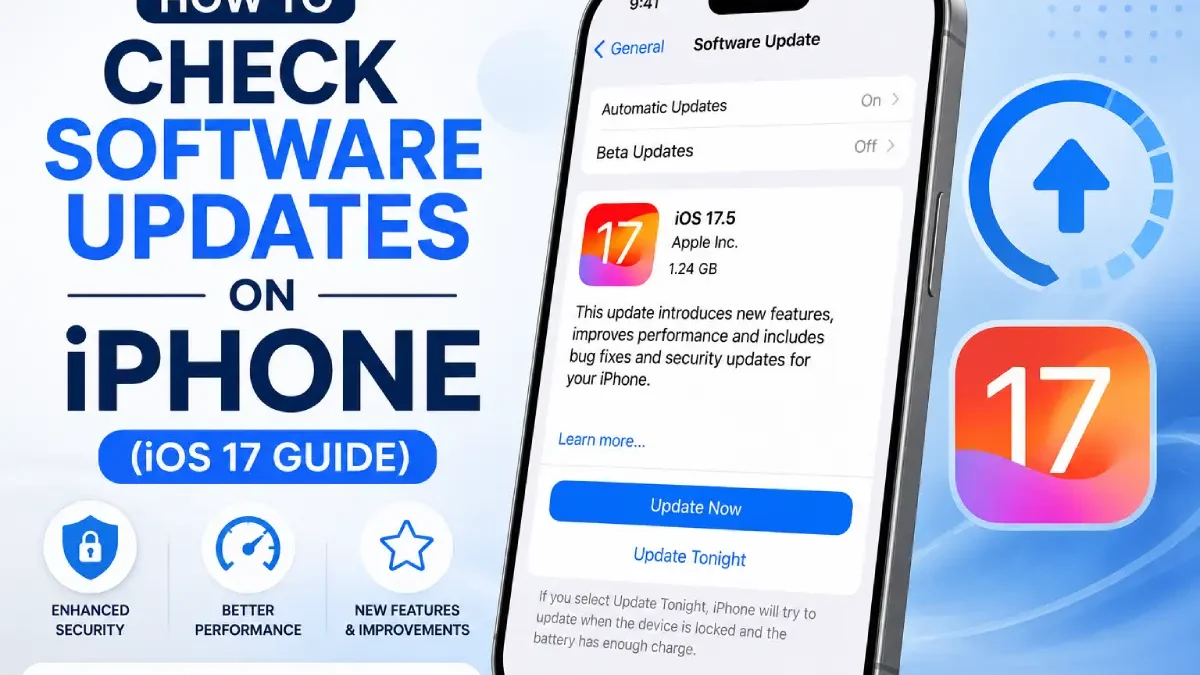
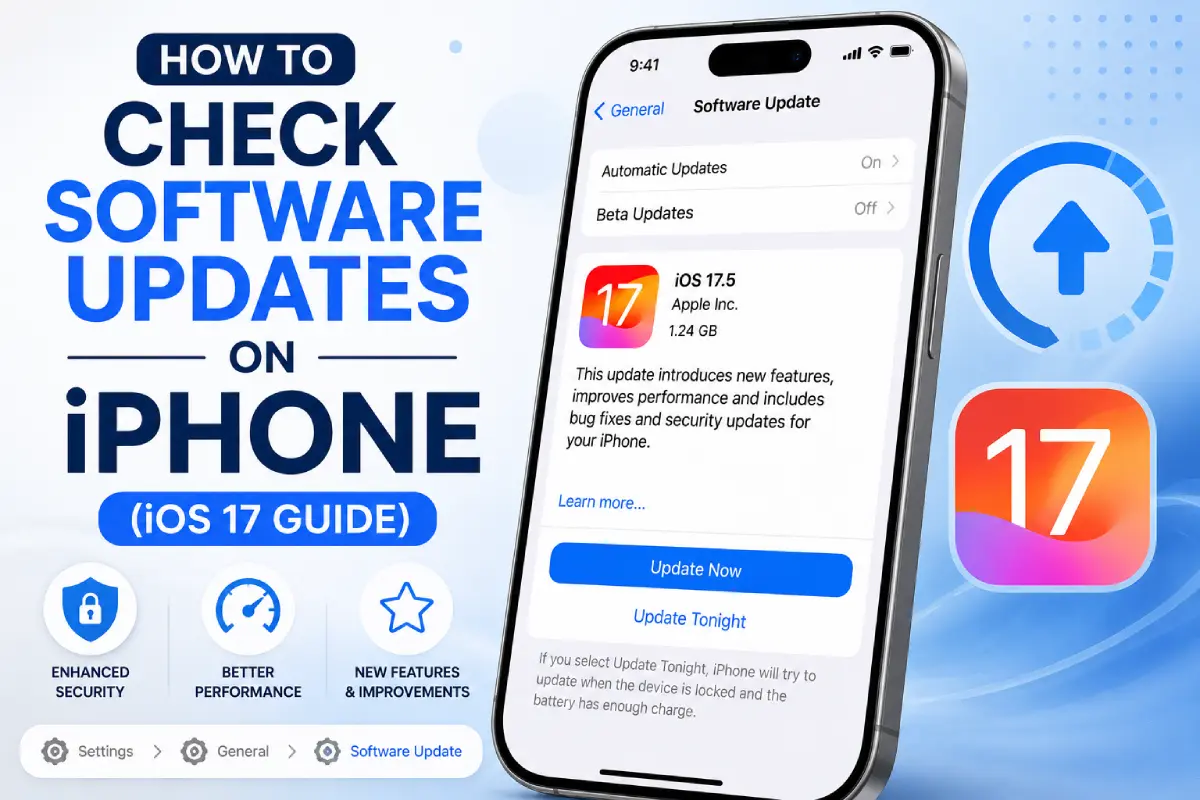
Quick Answer: How to Check for Software Updates on iPhone
The fastest way to check for iOS updates:
- Open Settings app
- Tap General
- Tap Software Update
- Then wait 5-10 seconds while connecting iPhone.
- If update available, tap (Download and Install
Your iPhone will tell you whether “iOS is up to date” or if there is any update available and if so, the file size and what is included in the update.
Why You Should Keep Your iPhone Updated
Security Protection
Important fact: In 2023 alone, Apple released 42 security patches across the range of all iOS updates that closed security holes that hackers could use to get to your photos, messages, data and funds.
IOS updates close security flaws that hackers can use today, such as: According to Apple security researchers, where possible, zero-day flaws are fixed in emergency iOS updates within days of being discovered..
Good protection on actual example: In 9/2023 Apple issued an update iOS 16.6.1 to close a security loophole being exploited via iMessage attachments, despite being resistant-to-click users could be compromised.
Performance Improvements
iOS updates aren‘t just about security they make your iPhone work better:
- Battery optimization: Improved battery life by up to 15% on iPhone 12 and 13 models with iOS 17.1.
- App launch speed in terms of performance improvements are going to enhance in shortening the time required to load the app by 20 to 30 percent.
- System stability: Bug fixes to avoid crashes, freezing, automatic restart.
- Network connectivity: Updates improve WiFi, cell, and Bluetooth reliability.
New Features
Each iOS release brings exciting new features:
iOS 17 introduced (September 2023):
- StandBy mode (converts iPhone to smart display when charging)
- Contact Posters (or customizable contact cards)
- Live Voicemail, (transcription en temps réel)
- NameDrop (exchange contact information by placing iPhones on top of each other)
- Journal app with prompts and suggestions
App Compatibility
Many apps require recent iOS versions to function. As of January 2024:
- Instagram is compatible with iOS 14.0 or higher
- TikTok Compatible with iOS 14.0 or Later
- Most banking applications are supported by iOS14.0 or later for security requirements.
New-in-version iOS phones are sold at a price Premium of 8-12 % more than other versions of the same type iOS Phone .
How to Check for iOS Software Updates (Step-by-Step)
This works on all iPhones running on iOS 12+ starting from the iPhone 15 Pro Max to the iPhone 6s.
Step 1: Open the Settings App
Tap the gray gear shaped icon labeled “Settings”. If it isn‘t there, then flip down from the middle of your home screen and type “Settings” into the search bar.
Step 2: Navigate to General Settings
Scroll down a bit and select “General” it is usually about 5-6 items down in the Settings menu, with a gray gear icon next to it.
Step 3: Tap Software Update
From within the General menu, select “Software Update” (second from the top, with a blue icon ).
Step 4: Gently wait for iPhone to Check
When that happens your iPhone automatically queries the apple server to see what’s up. Should be around five to fifteen seconds that it takes. A spinning wheel will pop up while searching for that.
Step 5: Review the Results
You‘ll see one of two messages:
Option A: iOS is current
- Existing version number of iOS (e.g. “iOS 17.2”)
- Message: iOS is current.
- Last check timestamp
Option B: Update Available
- New iOS version number (for example, “iOS 17.3”)
- Size of the file (Files are generally 500MB-5GB)
- Read more” link with release notes
- “Download and Install” button
- “Install Tonight” option (when connected to power)
How do I turn on automatic updates for iPhone
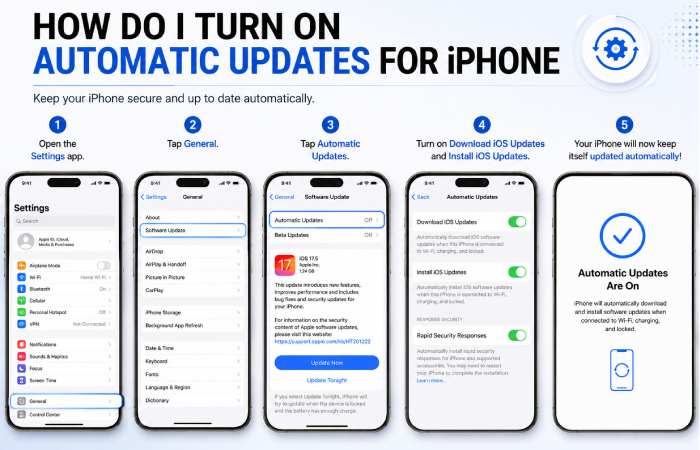
Automatic updates will have your iPhone updated automatically in the background when you are connected to WiFi so this is another setting to enable to keep your device fully up-to-date. Apple recommend turning this on.
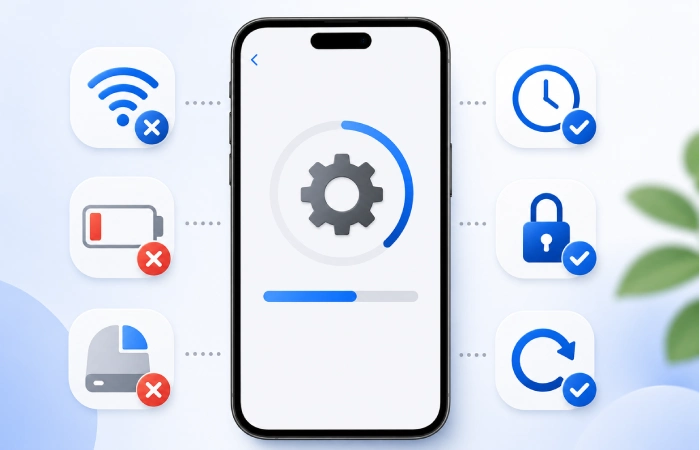
Requirements for Automatic Updates:
- Connected to WiFi network
- Plugged into power (charging)
- iPhone screen locked
- Battery is above 50 percent (excluding cases where not plugged in)
- Sufficient storage space available
Enable Automatic Updates:
1 Step: Open Settings app
2 Step: Tap General
3 Step: Tap Software Update
4 Step: Tap Automatic Updates
5 Step: Enable both toggle switches:
- “Download iOS updates” – iPhone will download updates over WiFi, being set to automatically.
- “Install iOS Updates” – iPhone updating, doing overnight updating between 2-4 AM.
6 Step: Turn on “Security Responses & System Files” for the critical patches.
When on your iPhone will automatically install an update during the night with downloading updates in the background overnight while WiFi has been turned on.
What to Do Before Updating Your iPhone
10 minutes of preparation on an update saves you several hours of grief if something goes wrong.
Step 1: Back Up Your iPhone
Option A: iCloud Backup (Wireless)
- Connect to WiFi
- Open Settings> [Your Name]>iCloud
- Tap iCloud Backup
- Tap Back Up Now
- AIT: call for backup and wait for backup to arrive (can take anywhere from five minutes up to 30 minutes depending on the time of day)
Option B: Computer Backup (via Finder/iTunes)
- Connect iPhone to Mac/PC cable
- Open the file: Finder (Mac) iTunes (Windows)
- Select your iPhone
- Select in the area “Backups”. “Back up all data”
- Uncheck “Encrypt local backup” (passwords will be exposed)
- Click “Back Up Now”
Step 2: Check Available Storage
- iOS updates: require some space for installation ( approximately2-3x the size of the download).
How to check:
- Settings > General > iPhone Storage
- Look at ‘Available’ space at top
- Compare to update size shown in Software Update
Storage Requirements:
- Under 1 GB update: requires 3–5 GB free
- 1-3 GB update you need 6-10 GB free.
- (3-5 GB Update: require 12-15 GB free)
Quick ways to free up space:
- Delete unused apps
- Offload apps (will keep on data but will remove app)
- Delete old messages
- Clear Safari cache
- Upload images to cloud, remove from device.
Step 3: Charge Your iPhone
Minimum needed: 50% batteryRecommended: 80%+ or connected to power
IOS updates will not occur if the battery level is below 50%(unless loaded to power). It can take between 20 and 45 min. to install an update.
Best practice: Make sure your iPhone is plugged into some power before starting the update.
Step 4: Connect to Reliable WiFi
Why WiFi is required:
- IOS improvements vary in size from 500 MB to 6 GB
- Apple (WiFi required for updates over 200 MB).
- Ensures stable, fast download
WiFi requirements:
- Stable connection
- Decent speed (minimum 5 Mbps recommended)
- Won‘t time out during download
Troubleshooting Common iOS Update Problems
Problem 1: “Unable to Check for Update” Error
Solutions:
- Test the internet connection by trying to go to apple.com in Safari.
- 1. Disable VPN temporarily (Settings > VPN >turn OFF)2.
- Set date and time (Settings > General > Date & Time > Set Automatically)
- Wait 2-6 hours if over naited by the Apple servers (Expected on release day)
Problem 2. Update gets stuck on “Preparing Update.”
How long is normal? 5-20 minutes (large updates can take 30 min)
If stuck over 1 hour:
- Force restart iPhone:iPhone 8 and later:side Button-press and swiftly release the Volume Up-press and swiftly release the Volume Down-press and keep hold of the Side Button till the Apple logo appears.iPhone 7: Side + volume down-have both pressed together overnight until you see the apple logo.iPhone 6s and earlier:Home +side-have both pressed together till the apple logo appears.
Problem 3: “Not Enough Storage” Error
Solutions:
- Free some storage space by removing unwanted apps, pictures and videos.
- Offload apps: Settings > General > IPhone Storage > Offload Unused Apps
- Delete update and use computer method (doesn‘t use storage space in i phone)
Problem 4: Battery Draining Fast After Update
This is very normal after big iOS updates.
Why it happens:
- Indexing files and optimizing applications (first 24-48 hours)
- New feature drawing MORE power until optimized
Normal timeline:
- 2-4 days after update:Battery life is 20-40% worse
- Days 3-5: Improving
- 7+ days: same as before or much improved
Solutions:
- Time it! 48-72 hours- most symptoms will resolve without treatment
- Enable Low Power Mode temporarily
- Update all applications (App Store > Profile > Update All)
- Check battery health (Settings > Battery > Battery health)
iOS Version Compatibility (2024)
Some iPhones run the newest version of the operating system called iOS, whereas others can not.
iOS 17 Compatible iPhones:
- I Phone 15 series (all models)
- IPhone 14 series (AS PER SPECIFICATIONS/PACKGING) including
- Apple‘s most targeted product is iPhone 13 series (all products) with 6065 articles.
- Iphone 12 range (all models)
- I Phone 11 series(all modl)
- iPhone XR, XS, XS Max
I Phone SE (2 nd gen 2020, 3 rd gen 2022)
iOS 16 Maximum (No iOS 17):
- iPhone 8, 8 Plus
- iPhone X
iOS 15 Maximum:
- iPhone 7, 7 Plus
- iPhone 6s, 6s Plus
- iPhone SE (1st gen)
Recommendation: if you have an iPhone 7 or earlier that can‘t run iOS 16 or higher, then perhaps consider an iPhone upgrade for security reasons. These devices will be 7+ years old in 2024 and a huge security concern.
How to Check for Software Updates Resource Hub
Learn how to check software updates across Windows, Mac, Android, iPhone,
update tools, troubleshooting guides, and best update practices.
Frequently Asked Questions
How frequently should I check whether my iPhone needs a software update?
Check if auto-update is on. If not, then check weekly, or when you hear of a new release of the iOS (large release about once a year in September, small updates 4-8 weeks). If auto-update is on you do not need to check.
Will the update iOS erase my data and images?
No, iOS updates not only preserve all data but also keep Photos, Videos, Apps, Messages, Contacts, Settings, including home screen applications layout. However, please always make sure you back up your data before each major update for insurance.
Am I able to utilize my iPhone as the updates are in progress?
Yes you can use the iPhone as you download, however the 15-45 minute install process will render your phone unusable.
May I just install an older iOS version?
In most cases no. Because of security issues apple doesn‘t allow to downgrade the iOS version to earlier ones.
Conclusion
Key Takeaways:
- ✓ Check regularly: Settings > General > Software Update
- ✓ Back up before major updates: iCloud or computer backup
- ✓ Install security updates immediately: Don’t wait on patches
- ✓ Charge and connect to WiFi: Required for smooth updates
- ✓ Be patient during installation: 15-45 minutes is normal
Staying current with iPhone updates helps with both security and operation of your iPhone and these minutes could very well be enough for you to avoid getting infected and having your personal data stolen from it or having a major compatibility issues between the various apps on your iPhone.