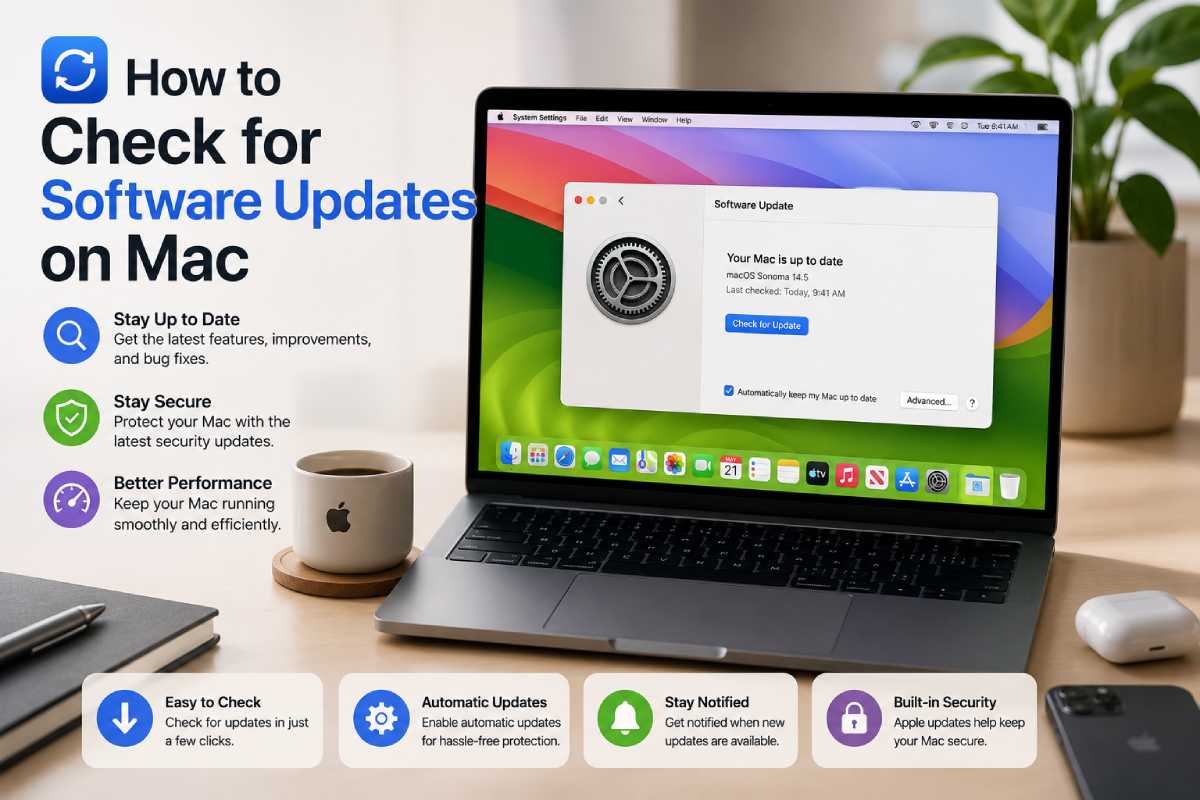
Last Updated: June 18, 2026
How to Check for Software Updates on Mac
If you want to learn how to verify software updates on Mac, this is the complete overview of all significant ways to upgrade macOS, Mac applications, drivers or system programs securely.
Keeping your Mac updated improves:
- security,
- battery optimization,
- performance,
- app compatibility,
- and system stability.
No matter what MacBook Air, MacBook Pro, iMac or Mac Studio you‘re on, you‘ll want to update your software in 2026 to keep it secure and performing at its best.
This guide covers:
- macOS updates,
- MacBook software update methods,
- Where to update Mac applications,
- Apple software update settings,
- troubleshooting failed updates,
- And best practices in upgrading my macOS.
Table of Contents
Why Mac Software Updates Matter
There are some Mac users who tend not to update because they experience bugs or storage problems. However, without updation, there are:
- security vulnerabilities,
- app crashes,
- reduced battery efficiency,
- compatibility problems,
- and slower performance.
Apple regularly releases:
- security patches,
- Safari updates,
- firmware updates,
- app improvements,
- and major macOS upgrades.
Benefits of Updating macOS
| Benefit | Why It Matters |
| Security Protection | Blocks malware and exploits |
| Better Battery Efficiency | Improves power management |
| Faster Performance | Optimizes system resources |
| App Compatibility | Supports latest applications |
| New Features | Unlocks Apple ecosystem improvements |
How to Check for Software Updates on Mac
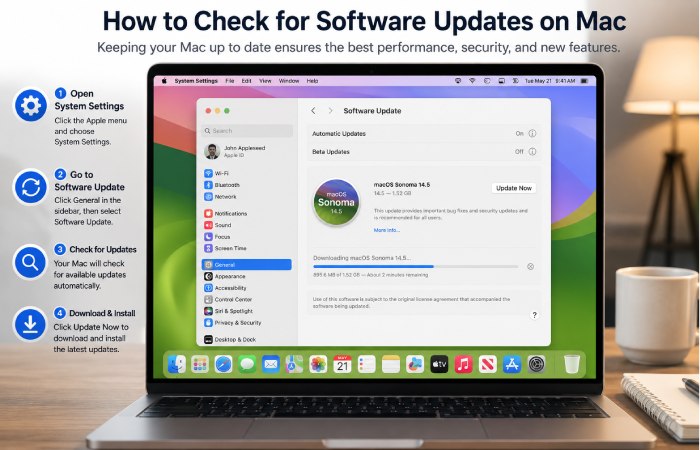
The diddidiest and safest way to configure it in Mac OS-X System Settings.
Guide for macOS Ventura, Sonoma and later
- Click the Apple Menu
- Open System Settings
- Select General
- Click Software Update
- Automatic updatecheck for new updates:wait for macOS to scan for updates
- Click Update Now or Upgrade Now
Your Mac will automatically check for:
- macOS updates,
- security updates,
- Safari updates,
- firmware patches,
- and Apple system improvements.
In the older operating systems Mac OS X Panther, Tiger and Leopard go to the Apple menu to see if updates are available. In the later Snow Leopard, click on the link at the top of the page.
Older macOS operating systems present a somewhat different menu system.
Steps for Monterey and Earlier
- Click the Apple Logo
- Open System Preferences
- Select Software Update
- Install available updates
In case you don‘t see Software Update in your Mac, then go to:App Store → Updates
Understanding Apple Software Update Options
Apple offers multiple update preferences which are frequently ignored.
Important macOS Update Settings
| Setting | Purpose |
| Automatic Updates | Installs updates automatically |
| Security Responses | Installs urgent fixes |
| App Updates | Updates Apple apps |
| macOS Upgrades | Installs major versions |
| Background Downloads | Downloads updates automatically |
For most users it is advisable to enable automatic updates.
How to Enable Automatic Updates on Mac
Automatic updates are undermanned to reduce security risks and benifited for time-saving.
Steps to Turn On Automatic Updates
- Open System Settings
- Go to General
- Select Software Update
- Click the Info icon
- Allow:Check for updatesDownload updatesInstall updates from macOSInstall app updates
This will help your Mac keep secure automatically without requiring any checking on your part.
How to Update Mac Apps
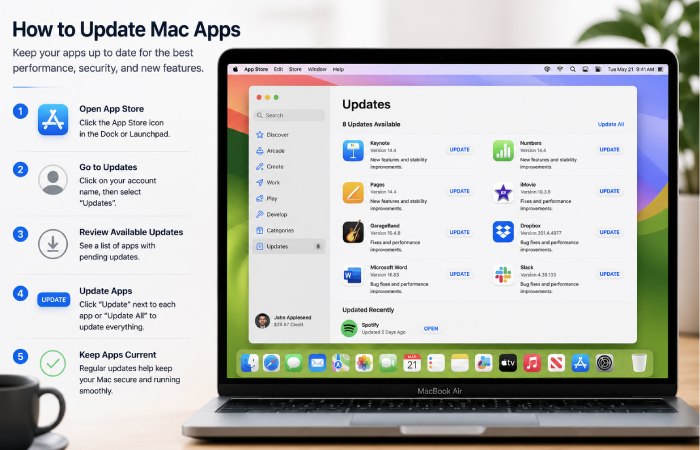
Quite often users tend to “update” their Macs and forget updating their applications.
Update Apps Through the App Store
- Open the App Store
- Click Updates
- Select “Update All” or update each app:
This updates:
- GarageBand,
- Final Cut Pro,
- Pages,
- Keynote,
- Numbers,
- Apple TV,
- And other App Store applications.
How to Update Programs on Mac Outside the App Store
Some applications update independently.
Common Examples
- Google Chrome
- Adobe Creative Cloud
- Microsoft Office
- Zoom
- Discord
- Spotify
Most apps have:Menu -> About-> Check for Update
Third-party software‘s keeps up-to-date to keep software secure and compatible.
MacOS Sonoma and Earlier Versions of OS X
macOS Update Comparison Table (2026)
| Feature | Older macOS Versions | macOS Sonoma |
| Update Speed | Moderate | Faster |
| Security Patches | Standard | Improved |
| AI Features | Limited | Better integration |
| Battery Optimization | Basic | Enhanced |
| Background Updates | Limited | Improved |
Apple Silicon Macs tend to get faster updates and better optimization than their older Intel counterparts.
Apple Silicon vs Intel Mac Update Experience
Update Performance Comparison
| Feature | Apple Silicon Macs | Intel Macs |
| Installation Speed | Faster | Slower |
| Battery Efficiency | Better | Moderate |
| Heat During Updates | Lower | Higher |
| Long-Term Support | Longer | Limited |
| AI Features | Fully supported | Partial support |
Apple clearly remains targeting Apple Silicon hardware first for new macOS features.
How much disk space do you require for mavericks updates?
Due to storage space you will have many install failures or slow downs in the installation process of your mac os.
Recommended Free Space
| Update Type | Recommended Free Space |
| Small Security Update | 5–10 GB |
| Major macOS Upgrade | 20–35 GB |
| App Updates | 2–5 GB |
How to Free Up Space Before Updating
- Delete unused apps
- Empty Trash
- Remove duplicate files
- Use Optimize Storage
- Use iCloud or external drive to store large files
Common Mac Software Update Problems
Mac Stuck Checking for Updates
Fixes
- Restart your Mac
- Check Wi-Fi connection
- Disable VPN temporarily
- Retry after few minutes
macOS Update Download Slow
Causes
- Apple server congestion
- weak internet connection,
- limited storage,
- background downloads.
Solutions
- Use stable Wi-Fi
- Pause large downloads
- Restart router
- Update during off-peak hours
“Not Enough Storage” Error
Solutions
- Delete temporary files
- Remove unused apps
- Clear Downloads folder
- Optimize storage settings
Mac Restart Loop During Update
Try These Fixes
- Boot in Safe Mode
- Reset NVRAM
- Disconnect peripherals
- Reinstall macOS Recovery
Best Practices Before Updating Your Mac
Before installing major macOS updates:
Recommended Checklist
- Create copies of your files with Time Machine.
- Plug and charge if you have a Mac Book.
- Ensure stable internet
- Close heavy applications
- Free up storage space
- Verify app compatibility
This will also reduce update failure risks.
Best Tools to Help Manage Mac Updates
Some users appreciate additional utilities for keeping their system healthy before installing upgrades.
Comparison Table: Mac Maintenance Tools
| Tool | Best for | Free Version | Main feature ||—-|—|—|—|| CleanMyMac | Storage cleanup | Limited | System cleaning || DaisyDisk | Storage visualization | Trial | Disk scanning || OnyX | Advanced system maintenance | Yes | System cleaning || AppCleaner | App removal | Yes | Easy un-install
Never download untrusted “Mac updater” program from unauthenticated website.
Security Risks of Skipping Mac Updates
Ignoring updates can expose your Mac to:
- browser vulnerabilities,
- ransomware risks,
- Wi-Fi exploits,
- outdated security certificates,
- and app compatibility failures.
In addition, most serious security issues are fixed via updates to the Apple software.
Internal Linking Opportunities
Use this pillar article to internally connect cluster articles such as:
- How to Fix macOS Update Problems
- Best Mac Cleanup Tools
- How to Speed Up a Slow MacBook
- Apple Silicon vs Intel Mac Performance
- How to Free Up Storage on Mac
- Best Antivirus Software for Mac
How to Check for Software Updates Resource Hub
Learn how to check software updates across Windows, Mac, Android, iPhone,
update tools, troubleshooting guides, and best update practices.
FAQ
How do I look up for software updates on Mac by hand?
Open:Apple Menu → System Settings → General → Software Update
Reasons why my Mac isn‘t updating:
Common reasons include:
- low storage,
- unstable internet,
- unsupported macOS version,
- or corrupted update files.
Does Mac automatically update apps?
Apps that have been downloaded in the App Store should update automatically if settings are switched on.
How long is a macOS update?
Small updates may take:
- 10–20 minutes.
Major upgrades can take:
- 30–90 minutes based on yourMacmodel and internet connection.
Is now the right time for a Mac upgrade?
Security updates such as updates to Safari or Apple Security Intelligence should normally be installed rapidly. When installing a major update to macOS, it is smartest to let some days pass so early patches do not stress you.