
Last Updated: September 10, 2026
How to Make AI Videos From Text for Free
You don‘t need a camera, an editing studio or high level video skills to create something simple.
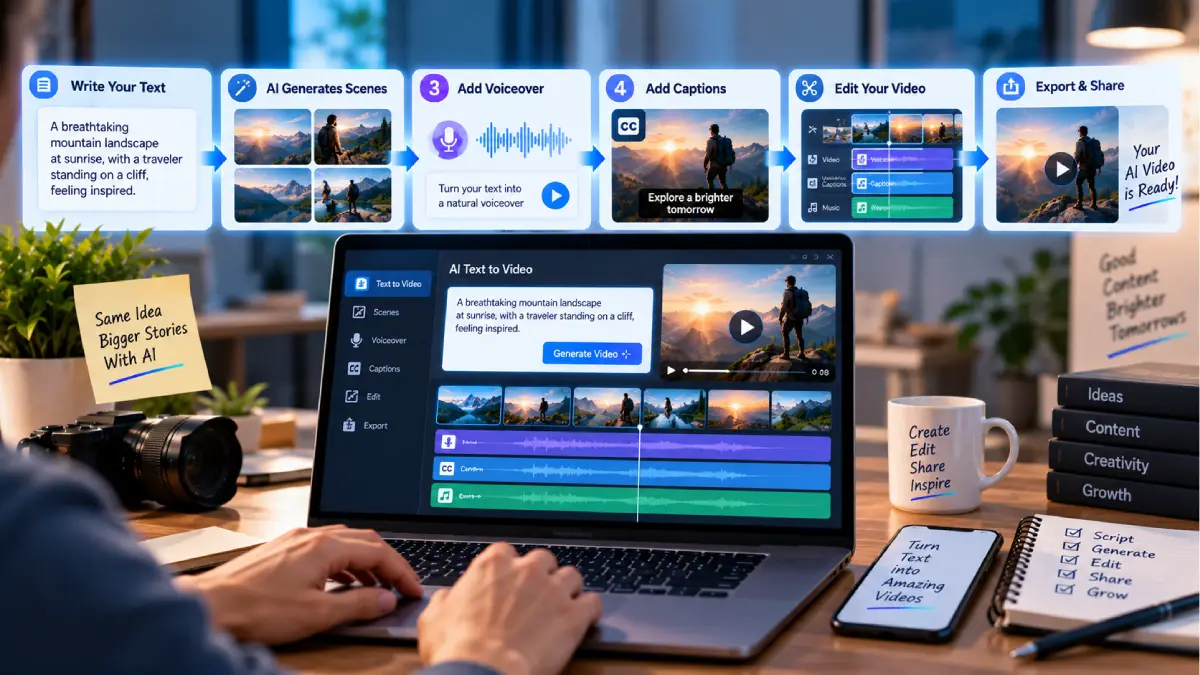
AI video tools take a piece of text, prompt, or script and generate scenes, animations, voice-overs, captions, and more into a story. Some have free credits or free versions making it a great tool for beginners who want to try things out before purchasing.
What is crucial is knowing what “free” actually entails. A number of sites give you a number of recurring credits, or a short trial. The free plan could also limit resolution, video length, export formats, or commercial use. All of these can change, so check the free plan before deciding to make something serious.
This article helps you create AI videos from text for free easily.
Table of Contents
What Is Text-to-Video AI?
Text-to-video AI.7 generates video based on writing.
You tell it what you want to see, and give it a little prompt. It will take your description and produce the film.
For example:
“Golden retriever jogging in a luminous park in the morning, camera moves like film, realistic PD style”
The tool might produce a short video clip of that scene.
Additional tools are also available to turn a longer script into a fully produced video by adding stock footage, generated imagery, AI voiceover, captions and transitions.
Two Main Types of AI Video Tools
Generative Video Tools
These produce new video scenes from prompts.
They are useful for:
- Cinematic clips
- Creative scenes
- Product visuals
- Facebook updates
- Short animations
AI Video Makers
Transform these into a script or idea into a more complete video!
They may automatically combine:
- Visuals
- Voiceover
- Music
- Captions
- Transitions
- Templates
2. Select the type to correspond to the kind of video you want to produce.
What You Need to Make an AI Video
You only need a few things to get started:
1. An AI video tool
Select a platform that has a free version.
2. A script or prompt
See what the video is to represent.
3. An idea for the final format
For example:
- YouTube video
- YouTube Short
- Instagram Reel
- Facebook video
- Product video
- Explainer video
We can speed up the process of construction if we know what we‘re ultimately going to make it.
How to Make AI Videos From Text for Free
Step 1: Decide What You Want to Create
Begin with a straightforward concept.
For example:
Generate a short video which demonstrates five key tips for buying a laptop.
Don‘t try and do a 10 minute project.
Begin with a short video so that you are able to learn how to use it.
Step 2: Write Your Script
Main content. Write the principal message before producing the video.
A simple script might look like:
Scene 1: Introduction
It is quite confusing to purchase a laptop. Here are the 5 points you can check.
Scene 2: Processor
Initially select the processor for your workload
Scene 3: RAM
Find a system with enough RAM for the tasks that you do on a day-to-day basis.
Scene 4: Storage
SSDs increase speed and responsiveness in the system.
Scene 5: Conclusion
“Instead of selecting just one component, compare the entire notebook.”
If you have a good script, it will be much easier to organize the video the AI.
Step 3: Choose a Free AI Video Tool
Various platforms currently provide the facility for some type of AI video creation, for free.
Dreamina‘s other free text-to-video facility that is capable of allowing users to convert a text into a video, and the existing platform that supports image-to-video and other AI creation processes. (dreamina.capcut.com)
CapCut currently is advertising a free AI video generator too. (capcut.com).It can turn text prompts into videos and integrate with the editor.
Others like Pika, Runway and InVideo provide different types of free access/trials; however the amount of free access and services provided may vary. (dreamina.capcut.com)
Don‘t select a tool because it has the word “free” on it.
Verify what is actually offered within the free plan.
Step 4: Enter Your Prompt
Your prompt need to give a clear picture.
A useful structure is:
Subject + action + setting + camera + light + style
For example:
Young businessman working on laptop in a contemporary office, typing, camera slow pan, natural soft light from window, business video style realism
This gives the AI more information than simply writing:
‘Person using laptop.’
Better AI Video Prompt Example
For a technology website:
Modern laptop on tidy office desk with software development work screen on display, close up movement on camera, natural daylight, realistic pro tech ad. Clear background. no text.
Clarifying the intended output can be facilitated by precise prompts.
Step 5: Generate a Short Clip
Begin with a short clip.
Short generations are easier to test and optimize.
Check the result for:
- Subject accuracy
- Movement
- Lighting
- Camera motion
- Object consistency
- Text errors
- Unusual visual capture, for example, fine details or a second object in the visual field.
AI video can sometimes still make errors.
Don‘t publish the first result automatically.
Step 6: Improve the Prompt
If it isn‘t correct, then modify the prompt.
For example, if the camera moves too quickly, add:
A “slow, smooth cameramovement.”
If the scene contains unwanted objects, specify:
“clean background, no extra objects.”
For a product shot, clearly explain where and how the product should be positioned and what its final appearance should be like.
Small prompt modifications might cause a very different outcome.
Step 7: Create More Scenes
Instead of making the AI create a single very long video, make it generate several short clips.
For example:
Scene 1: Introduction
2: Core Issue
Scene 3: First solution. For the first solution, the creator definitely emphasized on the question of what importance the education system should have in the society.
Scene 4: Second solution
Scene 5: Conclusion
And you can then put your clips together in an editor.
This gives you more control over your end product.
Step 8: Add Voiceover
If your tool has the capacity to generate AI voices then you can also put a voice over in this.
Voiceover Voiceover in educational and explainer videos helps audiences to follow.
Feel free to add your own voice for more personal results!
Always review the AI voice platform‘s license and terms of service before publishing a voice.
Step 9: Add Captions
Captions can aid understanding of videos, particularly relevant for social media platforms.
Keep captions:
- Short
- Is well written in a manner that is easy to understand.
- Properly timed
- Size appropriately for mobile display
Check the automatically generated captions for spelling and timing errors.
Step 10: Edit the Final Video
AI generation may not be the final word.
You may still want to edit:
- Scene length
- Cuts
- Music
- Voiceover
- Captions
- Transitions
- Branding
Basic editing is what turns simple AI clips much more useful.
Best Free AI Video Tools for Beginners
Here are some choices depending on what you‘re trying to achieve.
Dreamina
Dreamina has also now available free text-to-video work and allow to generate video through prompt. While the tool can also do image-to-video and some other creative ways (dreamina.capcut.com)
Good for:
- Short AI scenes
- Creative experiments
- Prompt-based generation
- Image-to-video workflows
CapCut
Cap Cut currently includes a free AI video generator for general video editing. (capcut.com)
Good for:
- Social media videos
- Short-form content
- Captions
- AI-assisted editing
Pika
The pika tool is good for creative video experiments of short length. It offers free allowance each month for video, along with free text to video in low quality (dreamina.capcut.com).
Good for:
- Short clips
- Social experiments
- Creative effects
Runway
Useful for prototyping more advanced generative video workflows, runway‘s free tier is quite limited, and its documentation for free generation track is centered around image-to-video not an established free text-to-video pipeline. (dreamina.capcut.com)
Good for:
- Creative experimentation
- Image-to-video
- Professional-style workflows
Example: Make an AI Video From a Simple Script
Say you would like to make a short video explaining how to have a healthy morning routine.
Your script could be:
Scene 1:
Begin a simple morning routine.
Scene 2:
“Drink water upon waking.”
3:
Go for a walk, even if short, or do some exercises
Scene 4:
Make a plan for your three most critical activities today.
All the above lines you can transform into a specific image.
For example:
Person drinking water, in the morning, next to the kitchen window bright light, realistic lifestyle video, slow camera movement.
And then make another scene for walking, planning and so forth.
Finally, merge the scenes with your narration and captions.
How to Write Better Text-to-Video Prompts
A basic prompt might be:
A city by night.
A better prompt is:
A bustling modern city street at night, post-rain. Reflections on the wet road surface. Silhouettes of pedestrians walking with umbrellas. A cinematic-like travelling shot. Realistic lighting.
Second prompt, gives more information to the model.
Include These Details
Subject
What should seem?
Action
So what‘s going on?
Location
Where is this taking place?
Camera
In what way will the camera move?
Lighting
What light should it be?
Style
If we want the video to be real, animated, cinematic or artistic?
Free AI Video Examples
You are able to make many kinds of videos with text.
Product Video
Slowly turning wireless headset with sleek design on white table in studio, softly lit, high-end product ad look.
Travel Video
The camera pans slowly over snow-covered mountains at dawn. Cinematic:Aerial shot with natural documentary realism.
Educational Video
A contemporary computer network linking laptops, servers and clouds; clean and educational animation; professional and technological style.
Social Media Video
A vividly colored coffee shop with a barista making a cappuccino, a social media ad in portrait orientation, camera moves quickly but smoothly.
These cases can be tailored to fit your specific topic.
Free AI Video Limitations
However free tools have their limitations.
You may encounter:
- Limited credits
- Short video duration
- Lower resolutions
- Watermarks
- Limited number of export channels
- Queue limitations
- Fewer models
- Personal-use restrictions
However, the free allowances can also change depending an issues such taking into consideration energy efficiency in the free allocation.
As you can see now that it does differ, some are credited daily and some with monthly credits but some are offered as a one off trial (dreamina.capcut.com)
Remember to check the current plan before starting a large project.
Can You Make a Complete Video for Free?
Yes, if it is a simple project.
You can combine free tools like this:
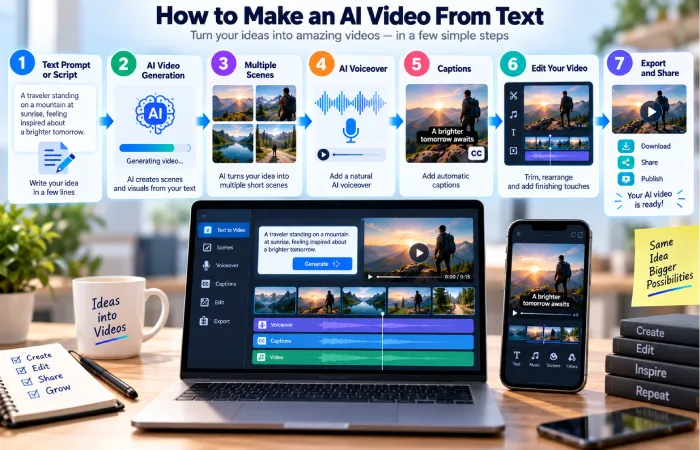
Script → AI video → Voice over → Captions → Editing → Export
A fully free production, on the other hand, might necessitate certain sacrifices with regards to quality, generation limitations, watermarking or licensing issues.
For short social videos and learning, that might be entirely appropriate.
For professional client work, examine the commercial rights and export restrictions thoroughly.
Common Mistakes to Avoid
Writing Vague Prompts
AI has less to go on.
Tell it exactly what to do.
Creating One Long Video
If a number of short scenes with a more straightforward structure are used this can also prove a more easily-managed form.
Not Checking AI Output
Always check for any visual errors within the produced video.
Ignoring Free Credits
It is possible for a long generation to use up a large fraction of the free allocation.
Forgetting Commercial Rights
Don‘t take for granted that free output is always available to be used for advertising or running the client‘s business.
Using Copyrighted Material
Please do not upload or reproduce any material you are not specifically authorized to share.
These will encompass photographs, sounds, graphic symbols and characters, and people‘s voices or likenesses.
Simple Workflow for Beginners
For your first project, keep it simple:
1. Choose a topic.
2. Write a short script.
3. Break it into 4–6 scenes.
4. Write one prompt for each scene.
5. Generate short clips.
6. Select the best results.
7. Add narration.
8. Add captions.
9. Edit the clips together.
10. Check the final video before publishing.
If the idea is to have everything done in a single operation by an AI agent, then this need to be in one single interface of AI agents can be harder to control.
FAQs
How can I make AI videos from text for free?
Select a free current AI video platform, compose a brief script or prompt, then generate various short scenes and edit clips together using a video editor.
What is the easiest way to make an AI video from text?
For beginners, an all-in-one AI video maker can be easier because it may combine script generation, visuals, voiceover, captions, and editing in one workflow.
Can I make AI videos without a camera?
Yes. Text-to-video AI can generate visual scenes without recording them yourself. You can also combine AI-generated scenes with stock footage or screen recordings.
Are free AI video generators really free?
They can be used without paying, but free plans usually have limits. These can include credits, duration, resolution, watermarks, or export restrictions.
Can I use free AI videos on YouTube?
Often yes, but check the tool’s current licensing terms and any requirements associated with the specific plan. YouTube may also have its own requirements around AI-generated or altered content.
How do I make better AI video prompts?
Describe the subject, action, location, camera movement, lighting, and visual style. Specific prompts usually give the AI more useful direction.
Final Thoughts
Learning how to make AI videos from text for free is easier when you start with small projects.
Write a short script, divide it into scenes, create clear prompts, generate short clips, and then edit the results together.
Free AI tools are excellent for learning and testing ideas, but their limits can change. Check the current credit system, export quality, watermark rules, and licensing before using the videos for business or monetized work.
The goal is not to let AI do every part of production.
Use AI to create the raw material, then use your own judgment to select, edit, verify, and improve the final video.
For the broader topic, continue with our How to Use AI Tools to Make Videos for Free guide.