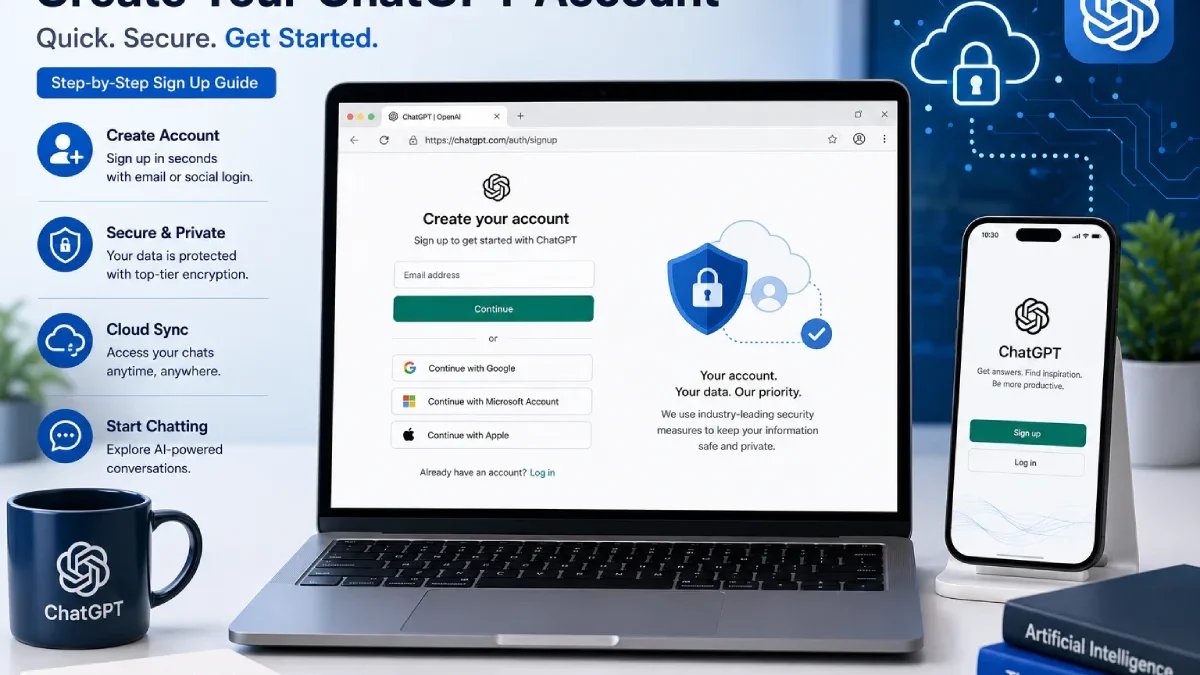

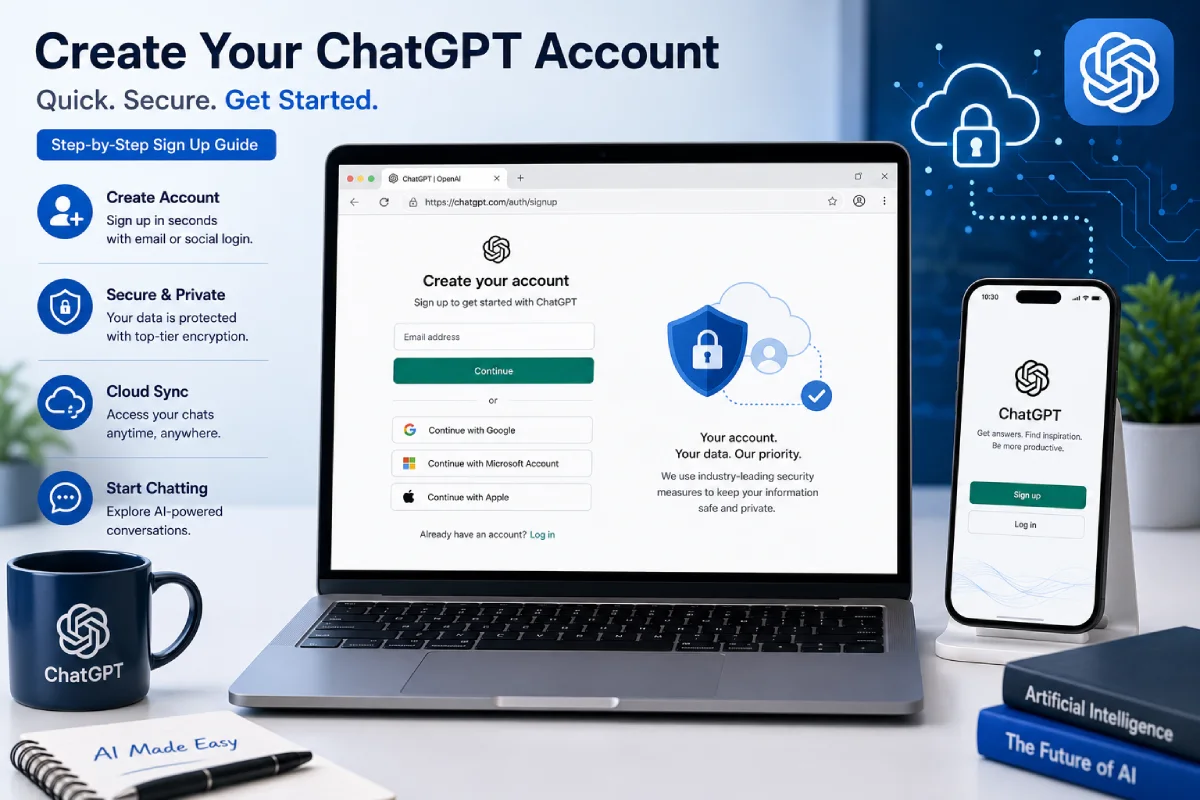


ChatGPT Sign Up Guide: How to Create a ChatGPT Account (2026)
Table of Contents
Introduction
If you want a full ChatGPT sign up guide, then we‘re the website for you. Registering for ChatGPT isn‘t time-consuming and will keep the best AI assistant in the world for writing, learning, coding, brainstorming, research, image creation and general productivity at your fingertips.
No matter if you‘re a student, a working professional, own a business, a developer, or just a curious user wanting to try out artificial intelligence for the first time, then by creating a chatgpt account you will be able to enjoy features not available to anonymous users. These features include saving your conversations, accessing your chat history on any device, uploading files, creating images (via a paid plan) and customizing your ChatGPT.
How to create an account for ChatGPT on Mac and mobile devices. Our complete guide compares signing up for ChatGPT using various options, explains how to verify your ChatGPT account and guides you through completing ChatGPT setup.
TECH HUB
This Article Is Part of the Emerging Technologies Hub
Explore artificial intelligence, quantum computing, blockchain, robotics, Web3, edge computing, future innovations, technology trends, and next-generation digital solutions inside our
Emerging Technologies Hub.
What Is ChatGPT?
ChatGPT is an AI-powered assistant created by OpenAI. It can respond to natural language input and perform many tasks such as:
- Answering questions
- Writing emails and documents
- Brainstorming ideas
- Learning new topics
- Programming assistance
- Data analysis
- Language translation
- Generation of images (provided with supported plans and features)
Though your chat is linked to your account, login provides a seamless experience and enables you to keep chatting across many devices. You can always access your chat transcript and see your chat history when you login.
What Is the Purpose of Having a ChatGPT Account?
While it might be possible to have some limited access without creating an account in other countries, the experience is far richer when signed up.
Benefits of Creating an Account
After creating your account, you can:
- Save your conversation history
- Use ChatGPT on a variety of devices
- For file upload for analysis (where permitted)
- Create custom GPTs (limited to supported plans)
- Personalize your settings
- Manage subscriptions
- Automatic synchronization of chats on your desktop and mobile
If a few times a day is not enough for you, then every day, creating an account is how to get full gratification with ChatGPT.
What You Need Before Signing Up
Before beginning the registration process, make sure you have the following:
A Supported Device
You can register using:
- Windows PC
- Mac
- Chromebook
- Android phone
- iPhone
- iPad
Internet Connection
You will need a secure Internet connection to sign up for your account and to verify it.
Authentication Method
You‘ll require at least one of the supported registration techniques.
Depending on your location and device, available options may include:
- Google account
- Apple account
- Email address
- Phone number (supported regions)
Select the method that works best for you, and stick with it every time you sign in from now on.
How to Log into and Create a ChatGPT Account on a Computer
Opening an account on the desktop/laptop is fairly easy.
Step 1: Visit the Official ChatGPT Website
Open your favorite web browser and go to the ChatGPT official website.
Protect your identity by always logging on via the OFFICIAL website. Never enter your details into a fraudulent website.
Step 2: Select Sign Up
On the home page, click on Sign up to start creating your account.
If you already have an account, select Log in.
Step 3: Choose Your Registration Method
There will be a few options for signing up depending on where you are.
Common choices include:
- Continue with Google
- Continue with Apple
- PowerBook G3 Cell (continued from Phone (supported regions))
- Continue with Email
Select the method that you want to use to login from now on.
Step 4: Complete Registration
Registration is based on the authentication method you chosen.
Google Account
If you choose Google:
- Select your Google account.
- Approve the authentication request.
- Complete any required verification.
Apple Account
If you select Apple:
- Sign in with your Apple ID.
- Confirm your profile if asked.
- Approve the authorization request.
Email Registration
If you choose email:
- Enter your email address.
- Create a strong password.
- Proceed to verification step.
Provide an e-mail address that you can access frequently. You‘ll need to log into that email account in order to recover your password if you forget it.
Phone Registration
Where supported you may be able to register by your phone number.
Follow the verification steps shown when Register.
Availability varies by country and device.
Step 5: Verify Your Account
Depending on your registration method, verification may include:
- Email verification
- Phone verification
- Authentication through Google or Apple
Follow all prompts for verification in their entirety.
Step 6: Access ChatGPT
When you register, you‘ll land on the ChatGPT home screen.
You are able to start your first interaction with the AI assistant straightaway.
Choosing the Best Sign-Up Method
There are small benefits to each different registration method.
| Registration Method | Easy Setup | Recommended For |
| ⭐⭐⭐⭐⭐ | Most users | |
| Apple | ⭐⭐⭐⭐⭐ | Apple ecosystem users |
| Email & Password | ⭐⭐⭐⭐☆ | Independent login |
| Phone (where available) | ⭐⭐⭐⭐☆ | Mobile-first users |
For most people, registering with Google or Apple is the fastest method, since it makes login and account retrieval easier.
Tips for Creating a Secure Account
Your ChatGPT account could one day have your important conversations, uploaded files and subscription details.
Following some security best practices from the start will protect your account.
Use a Strong Password
If you register with an email address:
Choose a password that includes:
- Uppercase letters
- Lowercase letters
- Numbers
- Special characters
Never use names, a birthday or common passwords.
Use an Active Email Address
Ensure that you have access to the email account that the account is registered to.
You’ll need it for:
- Password recovery
- Security notifications
- Account verification
- Subscription management
Keep Your Login Method Consistent
If you sign up with Google, you should keep signing in with Google.
Trying a different authentication method could cause you to log-in through a different account. and overlook the account you created.
Avoid Unofficial Websites
Please use either the official ChatGPT website or the official ChatGPT mobile application 23only to establish your account.
Skip open ai websites that prompts your details but are not Official.
What Happens After You Sign Up?
Once your account has been created successfully, you‘ll be able to:
- Begin your initial discussion with ChatGPT
- Customize your account settings
- View your conversation history
- Install the mobile app
- Multiple device access: Log into your account in on several devices.
- See what‘s available features with your plan
All your conversations, choices, and endorsement features are stored from your ChatGPT account.
Before Continuing
At this stage, you‘ve learned how to:
- Sign up a ChatGPT account on computer
- Select the most appropriate registration method
- Complete account verification
- Secure your new account
- First time you log onto ChatGPT
In the following section, you‘ll learn how to sign up with Android, iPhone, goes into further detail on all sign-up methods offered, guides you through your initial ChatGPT configuration, and then demonstrates how to start a new chat after setting up your account.
How to Create a ChatGPT Account on Android
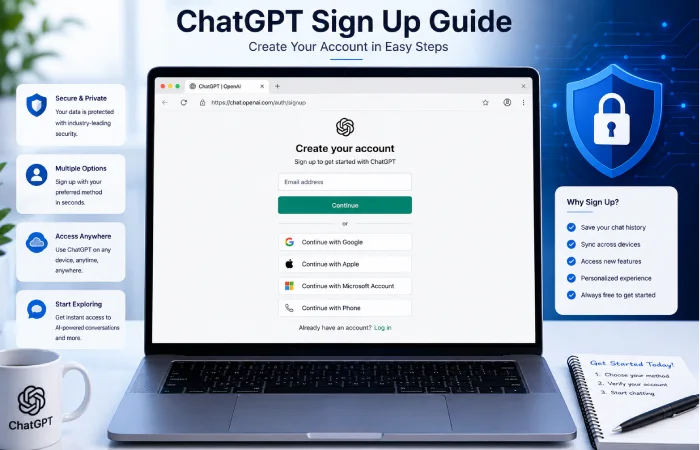
If you prefer to use your smartphone, setting up a ChatGPT account on Android is fast and simple. Setting up your account is easy, and your conversations, settings, and preferences are automatically synced across all supported devices.
Step 1: Install the Official ChatGPT App
Download the official ChatGPT app from the Google Play Store.
Before you install, check the publisher is OpenAI so you don‘t end up with an unofficial application.
Step 2: Open the App
Launch the ChatGPT app.
From the welcome screen tap Sign up.
If you‘ve already registered, click on Log in.
Step 3: Choose Your Registration Method
Available sign-up methods may include:
- Continue with Google
- Continua con Apple (en donde corresponda)
- Continue with Phone
- Continue with Email
Choose the method you would like to use from now on.
Step 4: Complete Verification
Depending on the method you selected, you may need to:
- Approve Google authentication
- Verify your Apple ID
- Confirm your email address
- Check your phone number (available regions)
Once the verification process is done, your account will be created automatically.
Step 5: Start Using ChatGPT
Once registration is finished, you can immediately:
- Start a new conversation
- Ask questions
- Generate ideas
- Upload files (supported plans)
- Access your chat history
- Adjust account settings
All your conversations will be synced with the same account on desktop and other supported devices.
Creating a ChatGPT account using iPhone and iPad:
The registration process on iOS is as same as Android.
Step 1
Download the official Chat GPT app from the Apple App Store.
Step 2
Open the application.
Select Sign up.
Step 3
Please select a registration type.
Options may include:
- Apple ID
- Google Account
- Phone (supported regions)
Step 4
Complete the verification process.
Once validated, you are now free to use your account.
Understanding ChatGPT Registration Methods
During account setup you will be asked to select your authentication method.
Knowing how to compare the differences can help you to choose the most appropriate one.
Continue with Google
The fastest, simplest way to register.
Advantages
- Quick setup
- There was no distinct password to recall
- Strong Google account security
- Easy account recovery
Best For
- Android users
- Gmail users
- Chrome users
Continue with Apple
Apple Sign-In also offers some privacy options.
Advantages
- Face ID support
- Touch ID support
- Hide My Email (if selected)
- Apple security features
Best For
- iPhone users
- iPad users
- Mac users
Email Registration
Traditional Registration for email independent account information.
Advantages
- Works on all supported devices
- No other account provider is depended upon
- Complete control of password handling15
Best For
- Users who use distinct login names.
- Organizations that have business-specific email addresses
Phone Registration
Phone registration: Only for some countries.
Advantages
- Quick verification
- Password-free authentication
- Convenient for mobile users
Availability depends on your region.
Verifying Your ChatGPT Account
The account verification feature is also there in order to make sure that users are protected from other users especially during login and other activities like creating a new account.
Depending on your registration method, verification may involve:
- Click on a verification link sent to your email
- Confirming your phone number
- Finish verification by signing in with Google or Apple
Make sure you‘ve done any necessary verifications before logging in.
Completing Your ChatGPT Setup
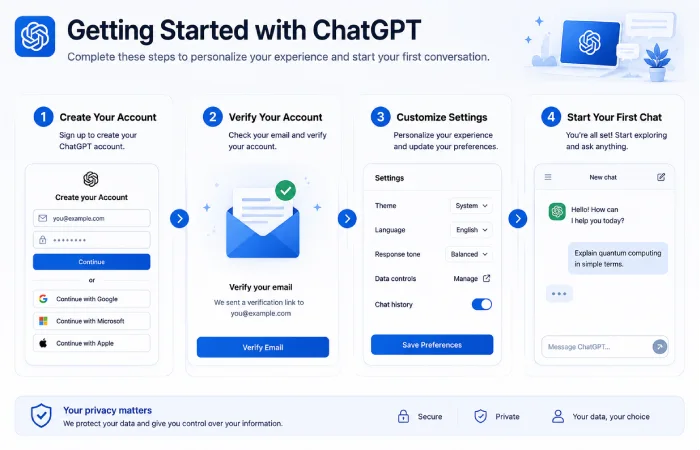
Once you have enrolled, there are some things you can do to tailor the site to your needs:
Review Your Profile
Check your:
- Display name
- Account information
- Login method
- Contact details
Having current information on your account helps when you need to recover your account.
Configure Your Preferences
Depending on available features, you can review settings related to:
- Personalization
- Notifications
- Data controls
- Appearance
- Connected devices
You can always change these defaults later if you do decide to change your mind.
Learn the Interface
Spend some time familiarize yourself with the ChatGPT interface;
You‘ll typically find options to:
- Start a new chat
- View previous conversations
- Access settings
- Manage your account
- Look at features available by your plan
As the user develops familiarity with the interface, he/she will be able to work with ChatGPT more effectively.
Your First ChatGPT Conversation
After you create an account, try a very simple prompt to begin with.
Examples include:
- Describe quantum computing in simplest terms.
- Please help me to compose a professional email.
- Come with party celebration ideas a party.
- Schedule weekly study sessions, by creation.
- Summarize this article.
- Please help me to debug my code.
By beginning with straightforward questions, you will get a sense of how ChatGPT responds and how to form good prompts.
Tips for Better Results
Giving ChatGPT more context will usually help it to give you a better answer.
Instead of asking:
“Write an email.”
Try:
“Composing a formal email to. Request and extend a project deadline.”
More specific prompts usually get better responses.
Free vs Paid Access
Once you‘ve signed up, you‘re able to select the way in which you want to use ChatGPT.
| Feature | Free Access | Paid Plans* |
| ChatGPT Access | ✅ | ✅ |
| Conversation History | ✅ | ✅ |
| Cross-Device Sync | ✅ | ✅ |
| Higher Usage Limits | Limited | Higher |
| Additional Features | Limited | More available |
The function is only available within these plans and are subject to change over time.
Common Registration Mistakes
Here are some tips for avoiding the typical pitfalls.
Using Multiple Login Methods
Multiple options such as creating a single account with Google and another via email can be confusing.
Stick with one registration method,
Entering the Wrong Email
Make sure to verify your email address, after you‘ve filled out the registration form,especially if you‘ve been disconnected in the middle!
An ‘incorrect email’ can be very inconvenient with regards to verification and password recovery.
Using a Weak Password
Choose a stored email address and select a password that is hard to guess.
Do not use the same password for a number of different websites.
Skipping Verification
Verify it if need be before trying to use ChatGPT.
Account Restrictions. Accounts may not be used, or may be subject to restrictions, or access denied for the following reasons: Incomplete verification.
Best Practices for New Users
To get the most from your new ChatGPT account:
- Choose the same login.
- Save your recovery information.
- Only if you will use ChatGPT on different devices: Download the official mobile app.
- Stay current Browser and app versions!
- Check your account settings from time to time.
- Avoid creating duplicate accounts.
By following these steps you should be able to have a more safer account and have a more enjoyable experience when first starting with ChatGPT.
Before Continuing
By now, you‘ve learned how to:
- Sign up a ChatGPT on Android and iPhone.
- Select the registration method that is most appropriate.
- Verify your account.
- Finish initial ChatGPT configuration.
- Start your first conversation.
- Avoid common registration mistakes.
In the next section, you will discover what to do when you encounter sign-up errors, issues with verification, your account being compromised, or if you want to optimize your ChatGPT experience after registration.
Common ChatGPT Sign-Up Problems and How to Fix Them
Registering a ChatGPT account take only few minutes and is very simple, however some users might face some errors. These errors could be due to wrong information, verification errors, lack of system support or server downtime.
This paragraph will guide you through the most common registration errors and how to fix them.
Problem 1: Verification Email Not Received
If, however, you registered using an email address, you will have to verify it before you begin using your account.
Occasionally the confirmation email does not appear immediately.
Possible Causes
- Incorrect email address
- E-mail received in Spam or Junk mail folder
- Draft 4 also has a status problem which cause delay in deivery for different email, this is a temporary problem.
- Full mailbox
How to Fix It
- Open your Spam or Junk folder.
- Just give it a few minutes and refresh your list.
- Ensure the email is input correctly
- If available, have the user request a new verfication email.
(please don’t do another one immediately, this can be confusing as it can be confusing as you go along.)
Problem 2: Phone Verification Issues
Support areas may also require confirmationby telephone.
Common issues include:
- Verification code not received
- Invalid phone number format
- Expired verification code
Solutions
- (Please check that your number is entered correctly.)
- Allow to sit for a few minutes, then try for a second code.
- Please ensure that your phone is directly connected to network.
- Enter the newest verification code if you have been asked for further ones.
Problem 3: Email Already Registered
You might also be given a message telling you that your address is already associated with a user account.
This usually means your already signed up.
Solution
Instead of creating another account:
- Select Log in.
- Original authentication procedure is applied.
- You may have your password reset if necessary.
Duplication accounts are considered to not be set up at all.
Problem 4: Unable to Complete Registration
Other time, the registration may also stop after the user created an account.
Possible reasons include:
- Browser compatibility issues
- Temporary internet interruption
- Browser extensions
- Temporary service problems
Solutions
Try the following:
- Refresh the page.
- Restart your browser.
- Clear cache and cookies.
- Disable browser extensions.
- Try another browser.
- Check your internet connection.
Problem 5: Creating Multiple Accounts
Most users ultimately end up creating several ChatGPT accounts because they were authenticating in different ways.
Example:
- Google account
- Email registration
- Apple Sign-In
Each registration counts as a separate account.
Best Practice
Use only one authentication type.
This collects your messages, preferences, and history all in one place.
Keeping Your New ChatGPT Account Secure
Once your account has been compromised, then at this point is when then obtaining though your account would become a associated issue.
Use a Strong Password
If you registered using email:
Choose a password containing:
- Uppercase letters
- Lowercase letters
- Numbers
- Symbols
Don‘t provide anything personal or anything that you already include in other passwords.
Protect Your Recovery Information
Keep access to:
- Recovery email
- Linked authentication provider
- Phone number (if applicable)
Recovery info is used to recover if your password get lost.
Avoid Sharing Your Account
Your ChatGPT account may contain:
- Personal conversations
- Uploaded documents
- Subscription details
- Custom settings
Never ever give away your login information to anyone.
Use Trusted Devices
Whenever possible, sign in only on:
- Personal computers
- Your own smartphone
- Trusted tablets
Never stay logged into your account on a public or shared access computer.
Account Settings Every New User Should Review
You might want to check out your account settings after you sign up as well.
Important areas include:
- Profile information
- Personalization preferences
- Notification settings
- Connected login methods
- Data controls
- Subscription information (if applicable)
Becoming familiar with the latter can help you to personalize ChatGPT for your requirements.
Tips for New ChatGPT Users
The process doesn‘t end there.
Some practices that will support you on this path of improvement are.
Be Specific
Instead of asking:
“Write an article.”
Try:
“With a reading ease higher than 50, make a 1,000-word article about electric cars with a clear structure (sub-headings).”
Generally, having a more specific prompt gives a better result.
Ask Follow-Up Questions
No need to initiate new chat each time.
Follow-up question directs ChatGPT to context, and will let ChatGPT respond to you more properly.
Organize Conversations
But I would recommend, where possible, to put all related subjects under the same thread.
And, as previously alluded to, makes it easier to refer to the previous discussion again.
Experiment with Different Tasks
ChatGPT can assist with many activities, including:
- Writing
- Coding
- Brainstorming
- Studying
- Summarizing
- Translation
- Research
- Productivity
So getting different use cases explorations would let you see the capacity of your platform.
Common Registration Mistakes to Avoid
Avoiding these mistakes will hopefully save you plenty of time in the future.
Using Different Login Methods
Continue logging in with the authentication you used during registration.
Forgetting Your Registration Email
Nomyx:Log in to your account using the email that you registered your account to.
Which makes resetting passwords very easy.
Ignoring Verification
Complete all validation before attempting to make ChatGPT function.
Using Unofficial Websites
Never sign up any unofficial websites or/and.mobile applications.
That way, it won‘t be so open information.
Best Practices After Registration
Once your account is active:
- Save the official website of ChatGPT as a bookmark.
- Download an official mobile application if required.
- Make sure that your browser and app are updated.
- Keep your recovery information safe.
- Logged off from interactive terminals.
- Make sure the preferences of your account.
Following this advice benefits both the security side and the experience side (your side).
Beginner Setup Checklist
Use this checklist after creating your account.
| Task | Complete |
| Create your ChatGPT account | ✅ |
| Verify your email/or mobile7 | ✅ |
| Choose one login method and keep using that one. | ✅ |
| Set a strong password | ✅ |
| Review account settings | ✅ |
| Start your first conversation | ✅ |
| Optional: Install the mobile app | ✅ |
| Save recovery information | ✅ |
Once completed it your account should be fully functional and ready to use on a day-to-day basis.
Before Moving On
At this point you should know how to:
- Solve common registration problems.
- Complete account verification.
- Secure your new account.
- Configure important settings.
- Begin using ChatGPT effectively.
The final part has the FAQ, final conclusion, FAQ schema mark-up, image promts, Internal linking suggestions and the SEO checklist to finalize this article to publish.
Frequently Asked Questions
What are the steps to do to open a ChatGPT account?
It‘s super easy to get started with ChatGPT!
- Open the product on the Chat GPT free page or on the app.
- Select Sign up.
- Choose your type of registration that you want.
- Continuity: Continue if a cue is given.
- Start using ChatGPT.
Once your account has been created, you will be able to access it from supported devices. Use the same sign-in to retrieve your account that you used to create it.
Does creating a ChatGPT account incur any expenses?
Yes.
The ChatGPT account is totally free. You can begin using it with no paid subscription. A paid subscription provides enhanced features and other perks as well.
Google account– how do I join or begin to use this account
Yes.
When you sign up by using Continuer avec Google. you are allowed to log in with your Google account. This is easiest and quickest way to sign up and be able to ChatGPT.
Can I share a single account between two devices?
Yes.
Once your account is created, you can sign in on:
- Windows PCs
- Mac computers
- Android phones
- iPhones
- Tablets
- Supported web browsers
Your Chats and Settings will be synched in the background if you have the same account.
Why haven’t I received the confirmation email?
Possible reasons include:
- This email will also be in your Spam or Junk folder.
- Incorrect email address. This has been entered wrong. You 39;ve entered incorrect email address.
- Delivery email has been delayed temporarily.
- Your mailbox is full.
Ask for the email again for confirmation if necessary.
More FAQ
What’ll I get if I register my email id?
If you already have an account using this email address, don‘t create a new one.
Instead:
- Select Log in.
- Current login.
- Another reason to change your password.
Am I entering my ChatGPT account or OpenAI account?
For most users, yes.
OpenAI services (which include ChatGPT) and any other services you opt for to subscribe by using your account will need to be ‘sign in’ under the same sign in credentials.
Is it risky to create an account with a ChatGPT login?
Yes, you can, when you log in to official ChatGPT site as well as to official mobile application.
For better security:
- Use a strong password.
- Protect your recovery email.
- Security Tip Do not reveal your login information.
- Log off the common devices.
Was it just the one time only? Will I be able switch to a different style of sign-in at some time in the future?
Sometimes, you will be asked to create, or if already created, to change the authentication method, who can access the account. This is done through your account settings, in some cases. Sometimes it is not possible, due the way your account has been setup by your system administrator.
Where possible, use the same registration method so that you do not end up with multiple accounts.
What are the next steps after my account has been created?
After registration, it‘s a good idea to:
- Complete your profile.
- Review your account settings.
- Start your first conversation.
- As needed, download the official application.
- Signs infor various devices.
- See what is available by account and plan.
Conclusion
The third reason why this ChatGPT sign up guide is so useful is that setting up a new account is remarkably easy on a desktop, Android or iPhone device. It only takes seconds to fully sign up and once verified you are ready to utilise the full potential ChatGPT has to offer including for writing, studying, coding, researching, productivity and virtually everything else you would like to use it for.
Choose any one sign in method (Google, Apple, email, or phone number) and register so your account is neat and so you don‘t run into problems later when you log in. Take some time to set up your account by checking your account settings, choosing a password, and learning how to navigate ChatGPT.
By utilizing ChatGPT, your account will be able to demonstrate the capability to save your chats across devices, synchronize your chat history cross various supported platforms, and access new features as they are introduced. Developing sound security habits early, such as setting up a hard to guess password, and protecting your recovery details, will serve you well.
Whether you are a beginner with artificial intelligence or just getting comfortable with using ChatGPT on a regular basis, the first step is to establish your account so that you get the most out of ChatGPT.
ChatGPT Login Hub
Discover how to log in to ChatGPT, troubleshoot login issues, create a new account, reset your password, recover your account, and access ChatGPT on mobile devices.