
Last Updated: June 5, 2026
How to Set Up WiFi Smart Switch: Setup Guide for Beginners 2018.
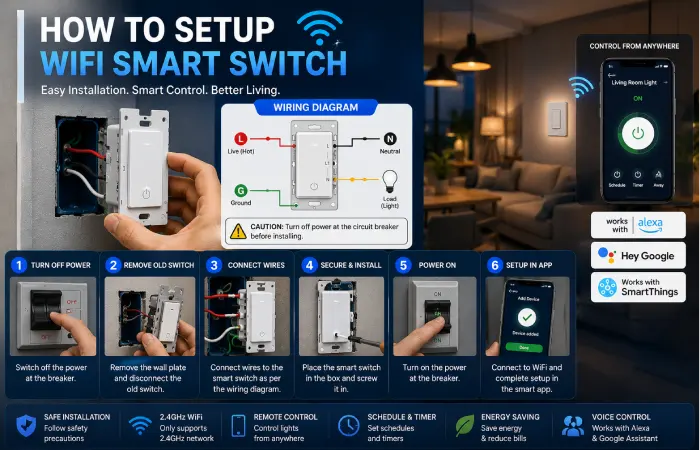
Table of Contents
Introduction
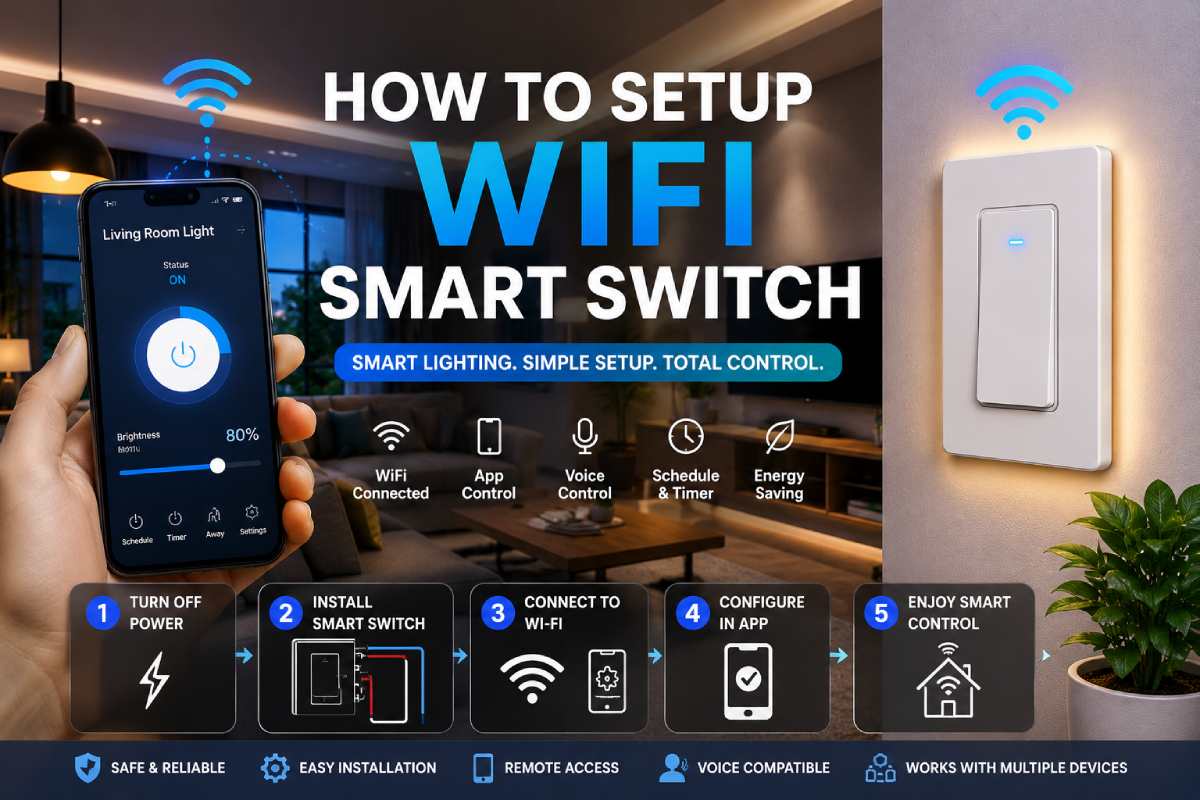
The easiest way to start building a smart home is to learn the installation of WiFi smart switches. Using a smart switch you can control lights and other smart connected devices via a smartphone app, voice assistant or automation routine.
Smart switches differ from smart bulbs in that they can incorporate an entire circuit rather than a singular light. This often makes them an easier solution for many residents, since they don‘t replace every bulb in the house.
In this tutorial, I will demonstrate how to install, connect your smart switch to WiFi, how to setup your automation settings, and how to add it to Alexa, Google Home or Apple HomeKit.
What is a WiFi Smart Switch?
A WiFi smart switch is essentially a standard wall switch that ties directly into your network.
Once connected, you can:
- Remotely switch on and off the lights
- Create schedules
- Set automation routines
- Use voice commands
- Has the ability to keep your home well-lit in your absence
- Improve energy efficiency
Most modern smart switches support popular smart home ecosystems, including:
- Amazon Alexa
- Google Home
- Apple HomeKit
- Matter-enabled platforms
Since the smart app is just controlling the circuit and not the switch itself, families can continue to have the lights working as they normally would without the smart app.
Benefits of Installing a Smart Switch
This is only one of many, currently leading, advantages offered by smart switches.
Improved Convenience
Lights instead of being turned on and off by walking to the wall switch could also be controlled by your phone or by means of your voice.
Energy Savings
Scheduling features prevent energy-saving lights from being left on all the time.
Enhanced Security
Vacation mode automatically switches on and off lights, as appropriate, to make it look like there is somebody in.
Smart Home Integration
Smart switches can work with:
- Motion sensors
- Smart speakers
- Security cameras
- Smart thermostats
- Home automation routines
Increased Home Value
A lot of buyers now consider smart home features as an attractive upgrade.
What You Need Before Installation
Before beginning to install, prepare all the equipment and source materials.
Required Tools
| Tool | Purpose |
| Screwdriver | Remove wall plate and switch |
| Voltage Tester | Verify power is off |
| Smartphone | Device setup |
| WiFi Connection | Smart switch pairing |
| Flashlight | Visibility during installation |
Installation Requirements
Most WiFi smart switches require:
- A 2.4GHz WiFi network
- Neutral wire
- Standard electrical box
- Compatible lighting circuit
Always check the makers’ instructions before buying.
Check Your Existing Wiring
Another very important step prior to installation, is to check the wiring within your switch box.
Neutral Wire
Certain smart switches rely on an active neutral wiring.
A neutral wire is usually:
- White in color
- Black is bundled with other white wires
Ground Wire
The ground wire is typically:
- Bare copper
- Green insulated wire
Line and Load Wires
The switch will also connect to:
- Line wire (incoming power)
- The power to the fixture from the power line has been supplied in the form from the load wire.
If you are unsure of what the wires are, don’t hesitate to seek help from a qualified electrician.
Step-by-Step Smart Switch Installation
Step 1: Turn Off Power
Locate and turn off the appropriate circuit breaker.
Never turn the unit off using the wall switch.
Check with a voltage tester that there is no power running through the wires.
Step 2: Remove the Existing Switch
- Remove the wall plate.
- Unscrew the switch.
- Gentle remove the switch from the electrical box.
- Photograph the wiring.
A photo also makes it far easier to put wires back in place if you become confused at some point down the line.
Step 3: Disconnect Existing Wiring
Remove the wires from the old switch in a careful, considerate manner.
Label them if necessary:
- Line
- Load
- Neutral
- Ground
Step 4: Connect the Smart Switch
Use the wiring diagram that is provided with the smart switch.
Typical connections include:
| Smart Switch Terminal | Wire |
| Line | Incoming power |
| Load | Light fixture |
| Neutral | Neutral wire bundle |
| Ground | Ground wire |
Ensure all wire connection are secure using the provided wire nuts.
Step 5: Install the Switch
Gently repin the wires back to the electrical box.
Mounting screws5. Fix switch in mounting position.
Attach the wall plate.
Step 6: Restore Power
Reswitch the circuit breaker.
The majority of the smart switches will turn blinking for entering pairing mode.
How to Connect Smart Switch to WiFi
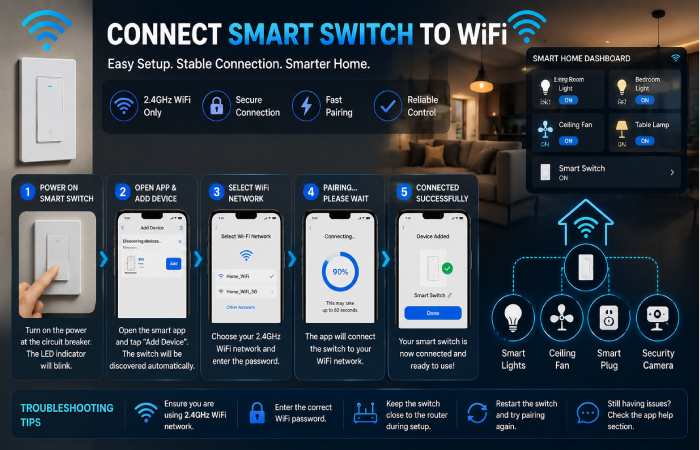
Once installed, the next step is to connect it to your network.
General Setup Process
- Download the manufacturer’s app.
- Create an account.
- Add a new device.
- Select Smart Switch.
- Follow on-screen instructions.
- [NOT working on iPhone].Try to connect to your WiFi network.
Popular Smart Switch Apps
| Brand | App |
| TP-Link Kasa | Kasa Smart |
| Aqara | Aqara Home |
| Wipro | Wipro Next |
| Leviton | My Leviton |
| Lutron | Lutron App |
Important Note
Generally they are only backwards compatible to 2.4GHz WiFi.
If you do have a router that combines 2.4GHz and 5GHz bands, you may need to divide them.
Configure Smart Switch Settings
After the connection is established you can configure the switch.
Rename the Device
Choose a descriptive name such as:
- Living Room Lights
- Hallway Switch
- Kitchen Lights
This reduces the difficulty of the voice command.
Create Schedules
Common schedules include:
- Turn lights on at sunset
- Switch lights off at bed time.
- Morning wake-up lighting
Set Timers
Timers are useful for:
- Bathrooms
- Outdoor lights
- Garage lights
Group Devices
Another alternative is to combine several switches into one group, for easier operation.
Example:
- Downstairs Lights
- Outdoor Lighting
- Bedroom Lights
Connect Smart Switch to Alexa
Nonetheless, Alexa still remains one of the most accessible smart home platforms.
Setup Process
- Open the Alexa app.
- Tap Devices.
- Select Add Device.
- Choose Switch.
- Enable the manufacturer’s skill.
- Log in to your smart switch account.
- Discover devices.
Example commands:
- Alexa, activate the kitchen lighting.
- Alexa, clear all alarms.
Connect Smart Switch to Google Home
Google Home works in the same way.
Setup Process
- Open Google Home.
- Tap Add Device.
- Select Works with Google Home.
- Find the manufacturer’s service.
- Sign in.
- Give the device a room.
Example commands:
- Hey Google, turn living room lights on
- Hey Google, turn off outdoor lights.
Smart Home Automation Setup Ideas
Once your switch is plugged in, you can set up some really powerful automations.
Sunset Automation
Lights automatically come on when the sun goes down.
Bedtime Routine
Power off every home lighting system.
Motion-Based Lighting
Use smart switches along with motion sensors.
Vacation Mode
Use randomly timed lighting effects during your trip.
Security Automation
Lights up when motion is detected by security cameras.
Common Smart Switch Installation Problems
Smart Switch Won‘t Turn On
Possible causes:
- Incorrect wiring
- Loose connections
- Circuit breaker off
Solution:
Double-check all wiring connections.
Smart Switch Won‘t Connect to WiFi
Possible causes:
- Weak signal
- Incorrect password
- Unsupported network
Solution:
Ensure you have a strong 2.4GHz Wi-Fi connection.
Device Not Appearing in App
Solution:
- Reset the switch
- Restart the app
- Repeat pairing
Alexa Cannot Find Device
Solution:
- Re-enable the skill
- Re-run device discovery
- Verify account linking
Smart Switch vs Smart Bulb
Most homeowners compare these two options.
| Feature | Smart Switch | Smart Bulb |
| Controls Entire Circuit | Yes | No |
| Color Changes | No | Yes |
| Installation | Moderate | Easy |
| Automation | Excellent | Good |
| Long-Term Cost | Lower | Higher |
Which Is Better?
Choose a smart switch if:
- You want whole-room control.
- The switch is operated by more than one person.
- You aim to increase automation.
Choose smart bulbs if:
- You want color-changing effects.
- You rent your home.
- You prefer simple installation.
Best Smart Switch Brands for Beginners
TP-Link Kasa
Known for:
- Easy setup
- Reliable performance
- Affordable pricing
Aqara
Known for:
- HomeKit support
- Advanced automation
Leviton
Known for:
- Professional-grade quality
- Premium features
Lutron Caséta
Known for:
- Exceptional reliability
- Strong ecosystem support
Wipro Smart
Known for:
- Budget-friendly options
- Beginner-friendly setup
Frequently Asked Questions
How do I set up a WiFi smart switch?
Turn off the power, reinstall the switch, turn on power and connect to switch with the mobile app.
Is a neutral wire a necessity for smart switches?
The majority of smart switches need a neutral wire to function; however, no-neutral models exist.
Am I able to do the installation of a smart switch?
If you feel confident in working with household wiring, installing the pump is usually simple. If not, then call a registered electrician.
Why is my smart switch not connecting to WiFi?
The vast majority of connection issues are due to signals being too weak, an incorrect password being used, or the trying to connect to a 5GHz network.
Is it possible for smart switches to function without internet?
Yes. All but one smart switch still work in the absence of an internet connection.
Installation: Which smart switch is the most user-friendly?
TP-Link Kasa smart switches are suitable for beginners because they are installed very easily.
Conclusion
A WiFi smart switch is one of the most useful smart home upgrades you can make today. They support remote access, scheduling, automation, voice assistance, and more all in a simple switch module.
Once you go through the steps of installing smart switches suggested in this guide, ensure that you verify the wiring needs in advance and purchase a reputable brand of smart switch, you can turn your house into a smarter home. With an Alexa, Google Home, or Apple HomeKit setup, the smart switch will be your home‘s foundation to build upon.